
Manage Hot Desking
Hot desking lets any staff member sign in to a shared desk phone with their own extension, so one handset can belong to different people at different times of the day. Once the feature is in use, you will occasionally need to step in as an administrator: end a session a user left signed in, or remove hot desking access from an extension altogether. Both tasks are handled from the Cloud Voice portal.
Force a user off a hot desking phone
Section titled “Force a user off a hot desking phone”If someone walks away without signing out, their extension stays active on that phone. Anyone who sits down next could place calls as that person, listen to their voicemail, or change their settings. Signing the extension out from the portal (the portal calls this Guest Out) closes the session and protects that user’s information.
-
Sign in to the Cloud Voice portal and open Auto Provisioning > Phones.
-
Point to the drop-down arrow next to the phone you want to clear, then choose Guest Out.
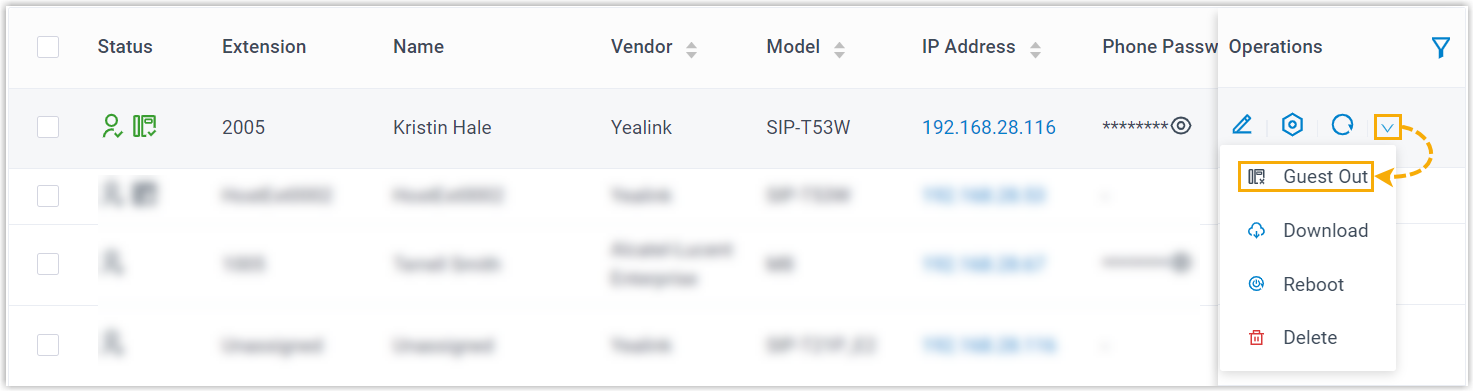
-
Confirm the action in the dialog that appears by clicking Confirm.
The signed-in extension is released from the phone right away, and the handset is ready for the next person to sign in.
Turn off hot desking for an extension
Section titled “Turn off hot desking for an extension”Disabling the feature on an extension stops that user from signing in to any hot desking phone. You might do this when someone moves to a permanent, assigned desk phone and no longer needs to roam between shared handsets.
-
Sign in to the Cloud Voice portal and open Extension and Trunk > Extension.
-
Click the edit icon beside the extension you want to change, then select the Features tab.
-
Scroll down to the Hot Desking section and switch it off.

-
Click Save, then Apply.
From this point on, the extension can no longer log in to a hot desking phone.
Question about this page?
Ask the AI assistant. It starts from this page, then searches the rest of the docs.
Ask Cloud Voice AI
Answers are AI-generated from the docs and may contain mistakes. Verify with the linked pages.