
Voicemail Menu Options
When you call into a voicemail box from your phone, Cloud Voice guides you with spoken prompts and you respond by pressing keys on the keypad. Each key press is sent as a DTMF (Dual-Tone Multi-Frequency) tone, the standard touch-tone signal that phone menus listen for. Use the tables below as a quick reference to what each key does.
Extension voicemail menu
Section titled “Extension voicemail menu”This is the menu you hear first when you log in to your own personal mailbox. The main menu offers these options.
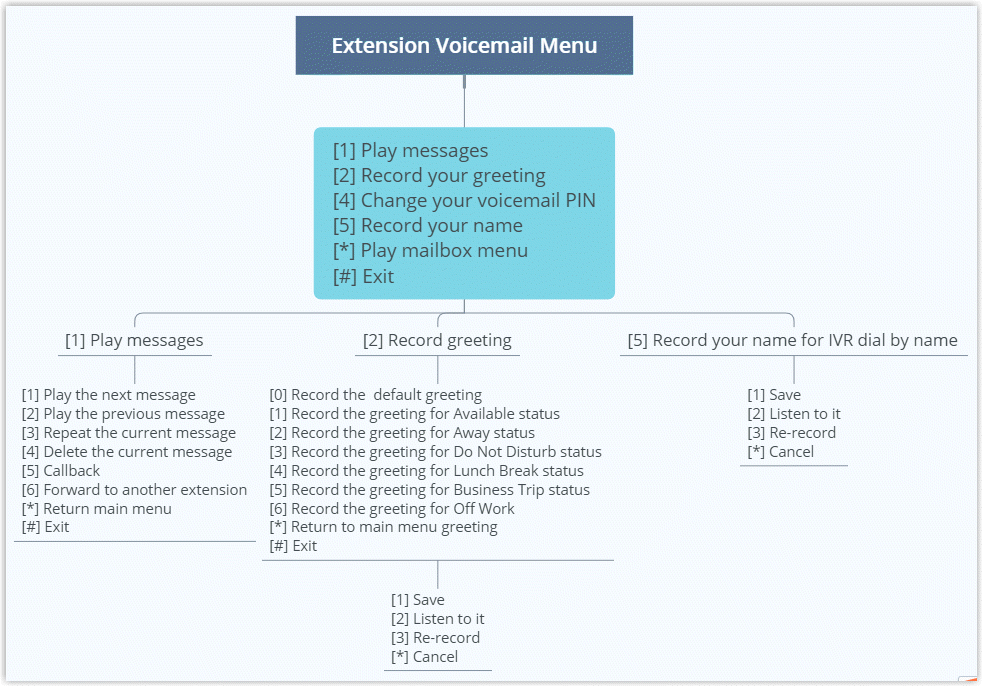
| Key | Action |
|---|---|
1 | Play your messages |
2 | Record your greeting |
4 | Change your voicemail PIN |
5 | Record your name |
* | Play the mailbox menu |
# | Exit |
While playing messages (1)
Section titled “While playing messages (1)”| Key | Action |
|---|---|
1 | Play the next message |
2 | Play the previous message |
3 | Repeat the current message |
4 | Delete the current message |
5 | Call back the person who left the message |
6 | Forward the message to another extension |
* | Return to the main menu |
# | Exit |
Recording a greeting (2)
Section titled “Recording a greeting (2)”A greeting is the message callers hear when they reach voicemail. Each presence status (the availability state set on the extension, such as Available, Away, or Do Not Disturb) can have its own greeting, so choose the status you want to record for.
| Key | Action |
|---|---|
0 | Record the default greeting |
1 | Record the greeting for Available status |
2 | Record the greeting for Away status |
3 | Record the greeting for Do Not Disturb status |
4 | Record the greeting for Lunch Break status |
5 | Record the greeting for Business Trip status |
6 | Record the greeting for Off Work status |
* | Return to the main menu |
# | Exit |
After you finish recording a greeting, you are offered these options.
| Key | Action |
|---|---|
1 | Save the recording |
2 | Listen to it |
3 | Re-record |
* | Cancel |
Recording your name (5)
Section titled “Recording your name (5)”The same options apply once you finish recording.
| Key | Action |
|---|---|
1 | Save the recording |
2 | Listen to it |
3 | Re-record |
* | Cancel |
Group voicemail menu
Section titled “Group voicemail menu”A shared group mailbox offers a similar main menu, without the per-status greetings or the recorded-name option.
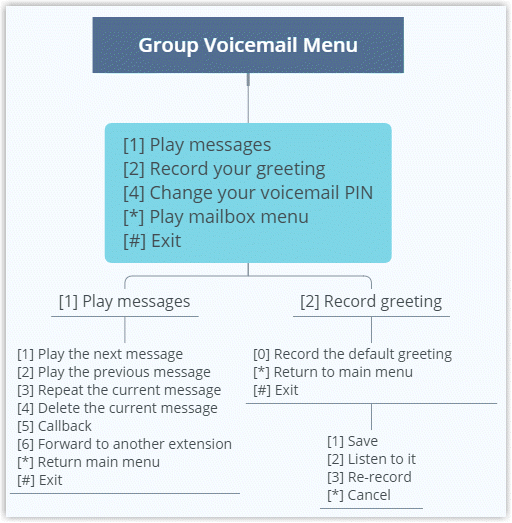
| Key | Action |
|---|---|
1 | Play messages |
2 | Record the greeting |
4 | Change the voicemail PIN |
* | Play the mailbox menu |
# | Exit |
While playing messages (1)
Section titled “While playing messages (1)”| Key | Action |
|---|---|
1 | Play the next message |
2 | Play the previous message |
3 | Repeat the current message |
4 | Delete the current message |
5 | Call back the person who left the message |
6 | Forward the message to another extension |
* | Return to the main menu |
# | Exit |
Recording the greeting (2)
Section titled “Recording the greeting (2)”| Key | Action |
|---|---|
0 | Record the default greeting |
* | Return to the main menu |
# | Exit |
Once you finish recording, the same save options apply.
| Key | Action |
|---|---|
1 | Save the recording |
2 | Listen to it |
3 | Re-record |
* | Cancel |
Question about this page?
Ask the AI assistant. It starts from this page, then searches the rest of the docs.
Ask Cloud Voice AI
Answers are AI-generated from the docs and may contain mistakes. Verify with the linked pages.