
Disable Configuration File Encryption for Yealink IP Phones
By default, Cloud Voice encrypts the configuration files it hands out to Yealink IP phones during auto provisioning. Auto provisioning is the process where the phone system automatically pushes its settings (network options, feature keys, and account details) to each phone, so you do not have to program every handset by hand. If your phones cannot decrypt those files, you can switch encryption off for every Yealink device at once so provisioning still works.
Why disable encryption
Section titled “Why disable encryption”When a Yealink phone auto provisions, Cloud Voice normally builds an encrypted configuration file. The phone has to recognize and decrypt that file before it can apply any of the settings inside.
Some Yealink models do not support this decryption. In that case, turning off encryption tells Cloud Voice to publish plain, unencrypted configuration files instead, which the phones can read and apply directly. Besides fixing provisioning on those devices, this makes Hot Desking (where a user signs in to any shared desk phone and their own extension follows them) more reliable, and it makes configuration issues easier to diagnose because you can read the file contents directly.
Before you begin
Section titled “Before you begin”Your platform must be running firmware version 84.23.0.24 or later.
Turn off encryption
Section titled “Turn off encryption”-
Sign in to the Cloud Voice management portal and open Auto Provisioning > Phones.
-
Above the phone list, click Options.

-
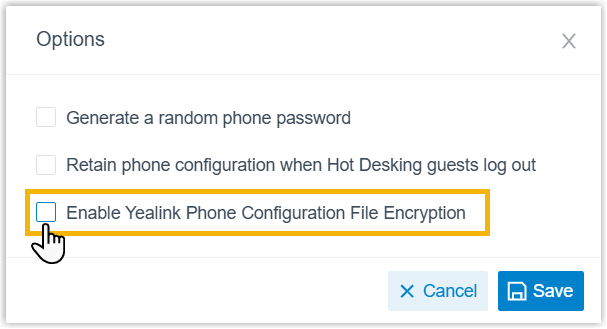
In the dialog that opens, clear the Enable Yealink Phone Configuration File Encryption checkbox.
-
Click Save.
What happens next
Section titled “What happens next”From now on, Cloud Voice generates unencrypted configuration files for all Yealink IP phones during auto provisioning. The phones download and apply their settings directly, with no decryption step required.
Question about this page?
Ask the AI assistant. It starts from this page, then searches the rest of the docs.
Ask Cloud Voice AI
Answers are AI-generated from the docs and may contain mistakes. Verify with the linked pages.