
Email Sender
The Email Sender component drops an email into the middle of a call flow, so the system can fire off notifications, alerts, or caller-specific details automatically as a call runs.
Overview
Section titled “Overview”Place Email Sender wherever the flow should send a message. You decide which mail server delivers the email and fill in the usual fields: the sender name, the recipients (To, CC, and BCC), the subject, the body, and any attachments.
Supported mail servers
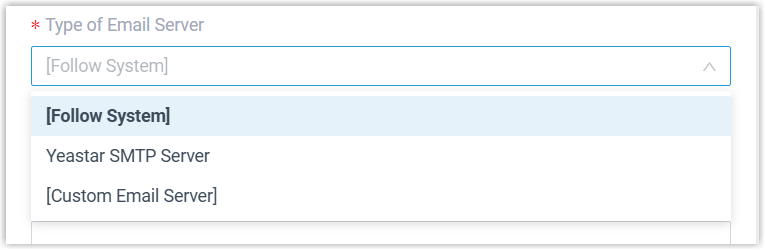
Section titled “Supported mail servers”- Cloud Voice SMTP Server: the built-in mail server, ready to use with no extra setup. SMTP (Simple Mail Transfer Protocol) is the standard protocol used to send email.
- Custom Email Server: an SMTP server you supply.
Configure the component
Section titled “Configure the component”-
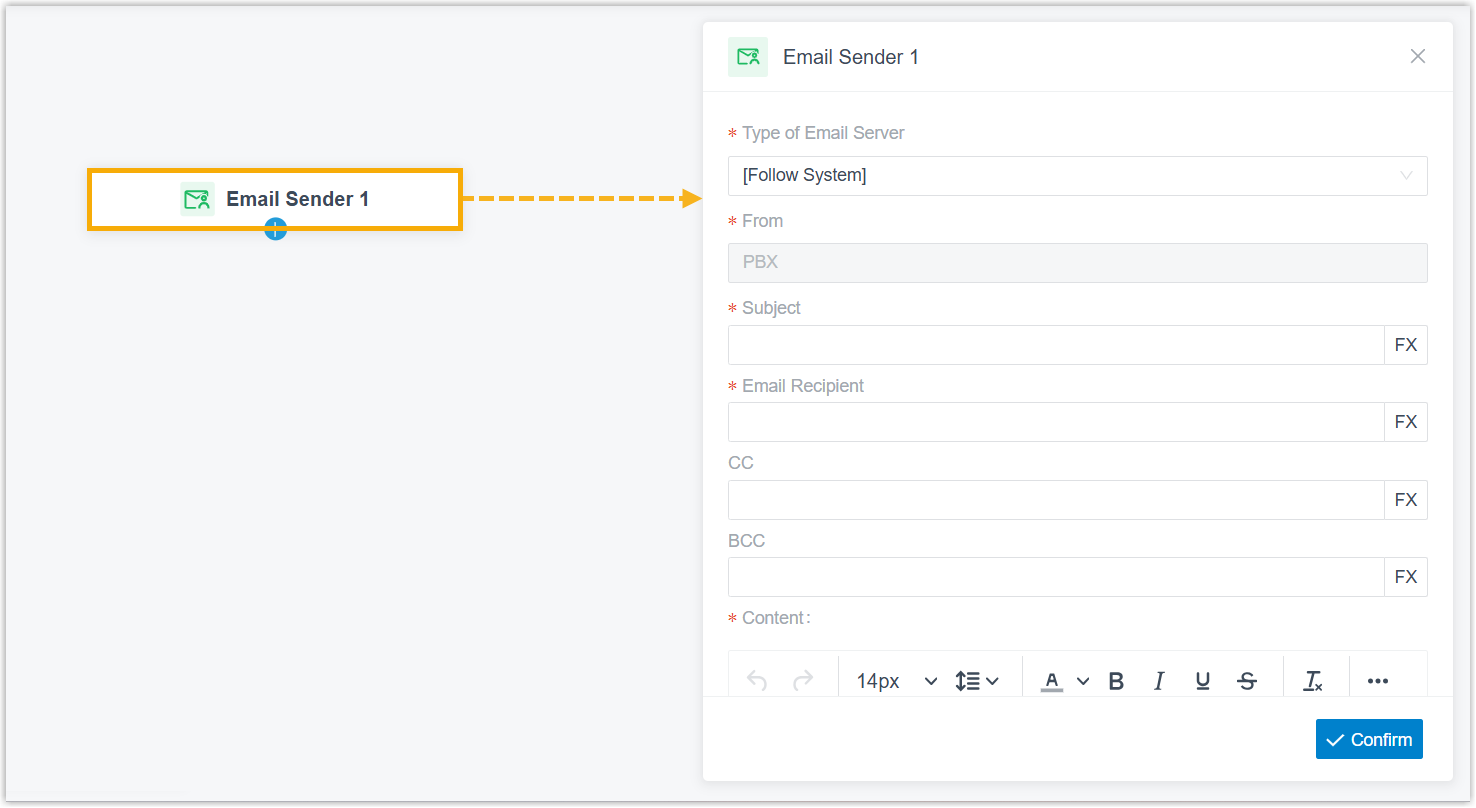
Add the Email Sender component to your call flow, then click it to open its settings.
-
Open the Type of Email Server list and pick the server that will send the message.
-
Complete the email fields described below.
-
Click Confirm in the bottom-right corner.
Email fields
Section titled “Email fields”From
The sender name that recipients see in the email’s “From” line.
Subject
The email subject. Type fixed text, or select the expression button ( ) to build the value dynamically.
Email Recipient
The recipient address, shown in the email’s “To” line. Enter addresses directly, or select the expression button to build them from an expression.
Expression example:
FX_TO_STRING($DatabaseAccess1.queryResult)In this case an upstream Database Access component runs SELECT email_addr FROM user WHERE number='$Session.ani'; to look up the email address tied to the caller’s number, and FX_TO_STRING converts that result into a string for the recipient field.
CC
The carbon-copy address, shown in the email’s “Cc” line. Enter addresses directly or build them with an expression.
BCC
The blind-carbon-copy address, shown in the email’s “Bcc” line. Enter addresses directly or build them with an expression.
Content
The body of the email. You can embed variables to pull in call or system information:
-
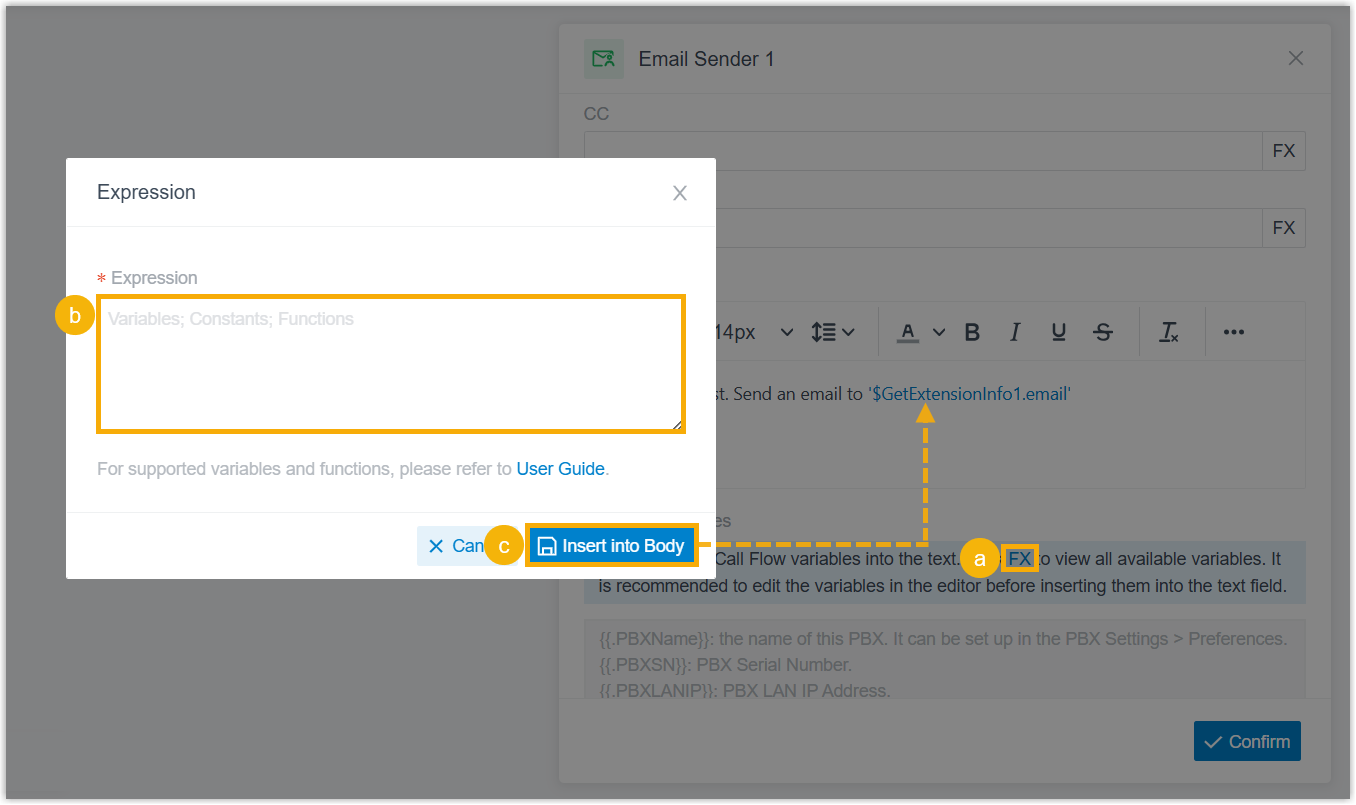
For call-related information, select the expression button, build the expression, and insert it into the body.
-
For system-related information, copy the template variable and paste it into the body.

Attachments
Click Add to attach a file. For each one, enter an absolute path (or an expression that resolves to a path) that points to a file in the PBX’s local storage.
- File path example:
/ysdisk/syslog/pbxlog.log - Expression example:
/ysdisk/email/'FX_CONCATENATE("cloudvoice","6602")'
Do not send email if the attachment file does not exist
Select this option to skip sending the email whenever any attachment file is missing.
Supported connections
Section titled “Supported connections”Email Sender connects to exactly one downstream component. That component can be any of the following:
- Prompt, Play an audio prompt or a text-to-speech message to the caller.
- Business Hours, Route calls to different destinations based on the time of day.
- Menu, Offer callers a set of options and route the call by the DTMF digit they press. DTMF (Dual-Tone Multi-Frequency) is the tone a phone sends when a key on the dial pad is pressed.
- User Input, Collect DTMF digits from the caller, typically paired with Condition to route on what they enter.
- Language, Switch the system-prompt language for the components that follow.
- Record, Start recording once the caller connects to another party (with optional notice prompts), or suppress recording for calls that would otherwise be recorded.
- Dial by Number, Let callers dial a number directly to reach their destination.
- Dial by Name, An end component that lets callers reach a user by entering the first three letters of the user’s name.
- Transfer, An end component that transfers the caller to a set destination, with optional notice prompts.
- Hang Up Call, An end component that disconnects the call.
- Condition, Route calls using logical expressions.
- Loop, Run a group of components repeatedly, either a set number of times or until a condition is met.
- Internal Data Ops: Query and update data in the PBX-native database. See:
- Email Sender, Send another email for notifications, alerts, or user-specific information.
- Database Access, Run SQL against a database to retrieve or update data during the flow.
- HTTP Request, Send HTTP requests to external servers to exchange data with third-party services.
Question about this page?
Ask the AI assistant. It starts from this page, then searches the rest of the docs.
Ask Cloud Voice AI
Answers are AI-generated from the docs and may contain mistakes. Verify with the linked pages.