
User Input
The User Input component captures the DTMF digits (Dual-Tone Multi-Frequency: the tones a phone sends when the caller presses keys) that a caller keys in and saves them for the rest of the flow to use. It works hand in hand with the Condition component: collect what the caller enters here, then branch on that value further down the flow. You decide when collection stops, after a digit or response timeout, or when the caller presses an end key, and you can play a prompt or a spoken message to tell them what to enter.
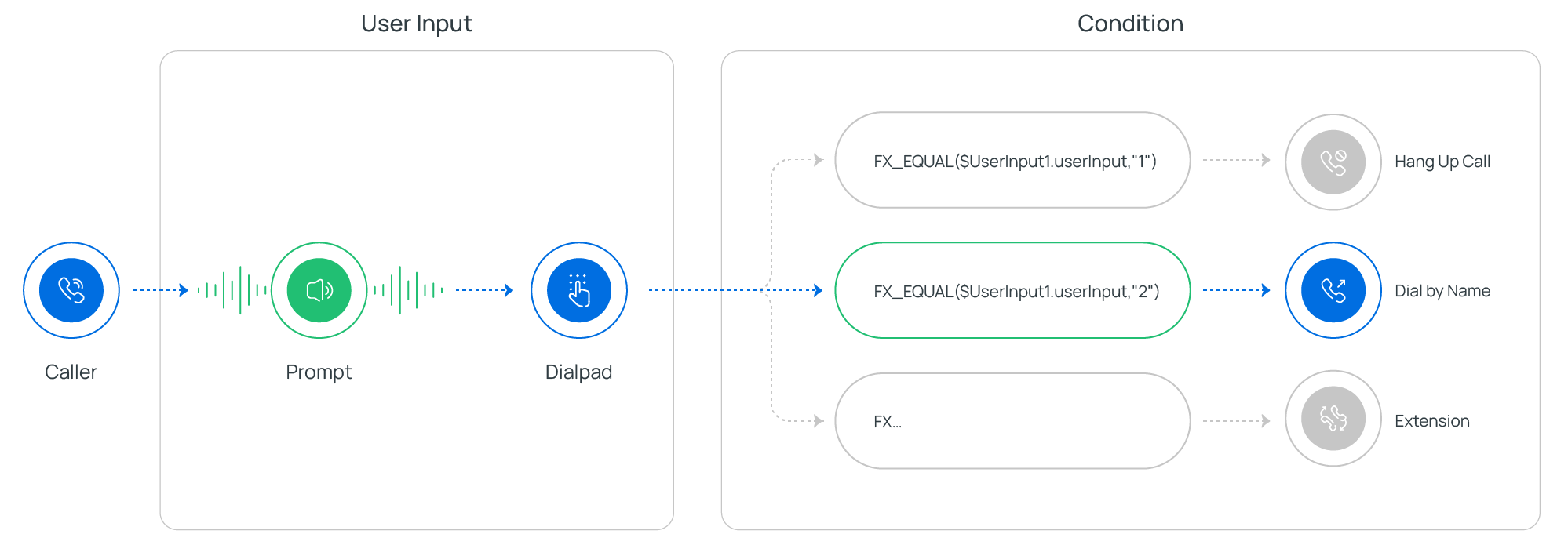
Prompt types you can play
Section titled “Prompt types you can play”You can front the input with any of three prompt types.
| Prompt type | What it plays |
|---|---|
| Custom Prompt | An existing custom prompt, or a new one you record from an extension or upload as an audio file. |
| Music on Hold (MoH) | A hold-music track already saved on the system. |
| Text to Speech (TTS) | Text you type, spoken back in the language and voice style you pick. |
End keys
Section titled “End keys”An end key lets the caller signal that they have finished entering digits. You can use #, *, a numeric key, or no key at all. Set it under Call Flow Designer > Options.
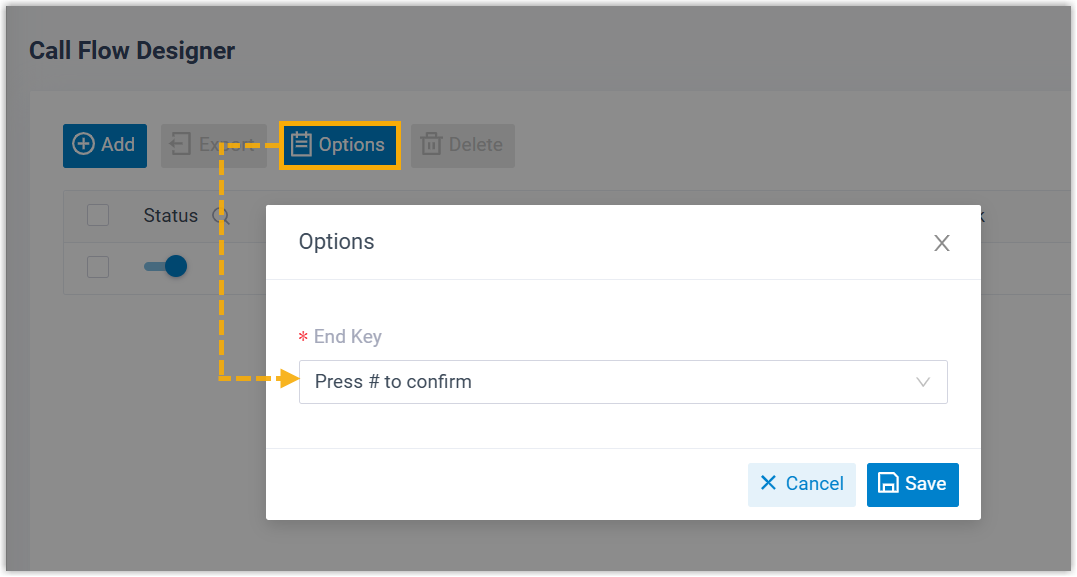
Configure the component
Section titled “Configure the component”-
Add the User Input component to your call flow, then click it to open its settings.
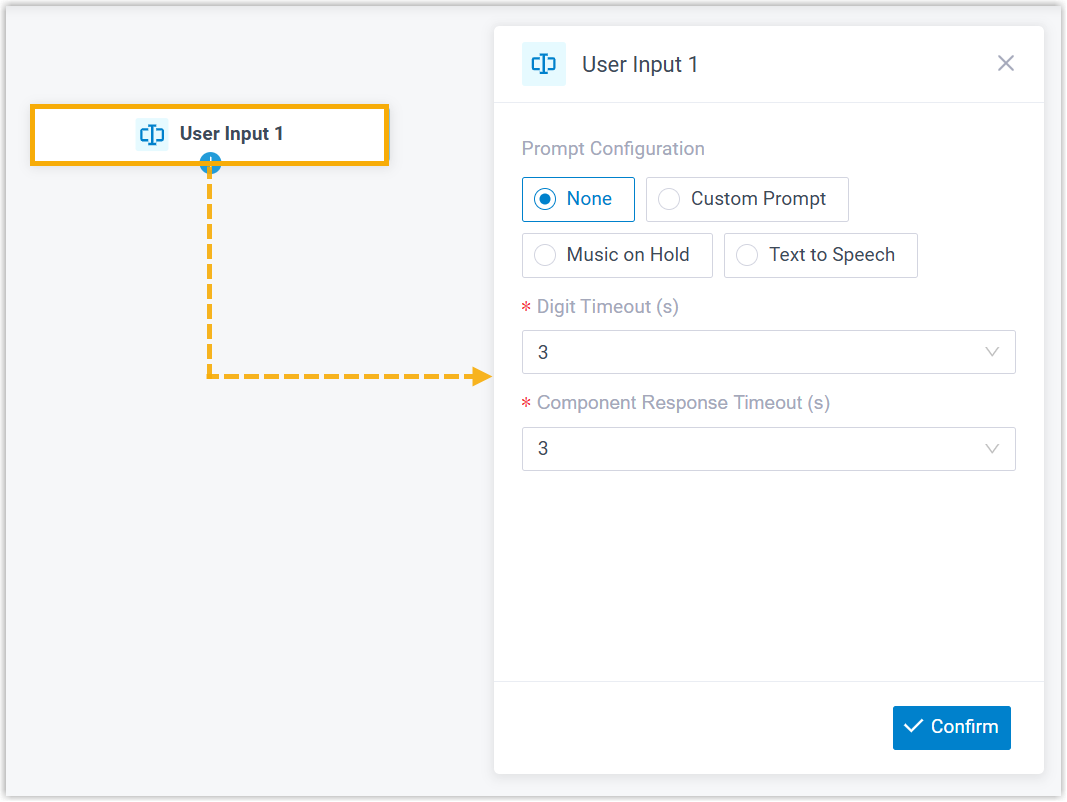
-
Optional: add a prompt or a spoken message to tell callers what to enter. Follow the section below that matches the prompt type you want.
Play a custom prompt
Section titled “Play a custom prompt”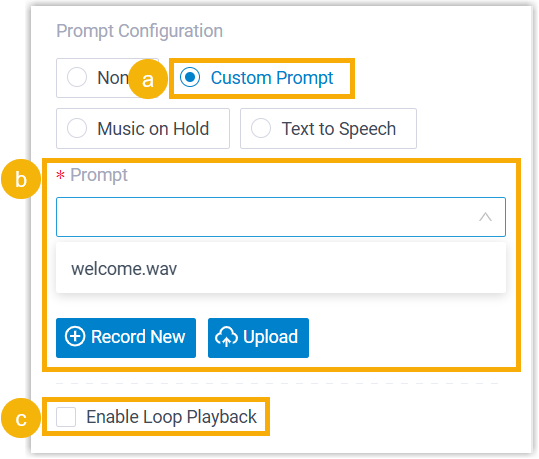
-
Click Custom Prompt.
-
Choose the prompt or prompts to play.
-
To reuse an existing prompt, pick it from the Prompt list.
-
To add a new one, click Record New to record from an extension, or Upload to add an audio file.
-
-
Optional: to repeat the prompt(s) continuously, select Enable Loop Playback.
Play music on hold
Section titled “Play music on hold”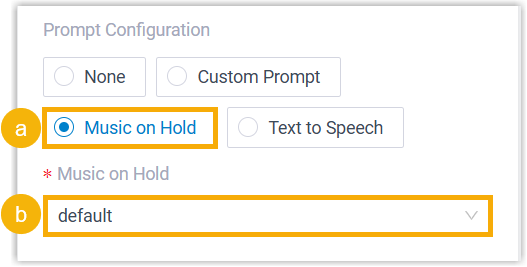
- Select Music on Hold.
- Pick a saved track from the Music on Hold list.
Play a text-to-speech message
Section titled “Play a text-to-speech message”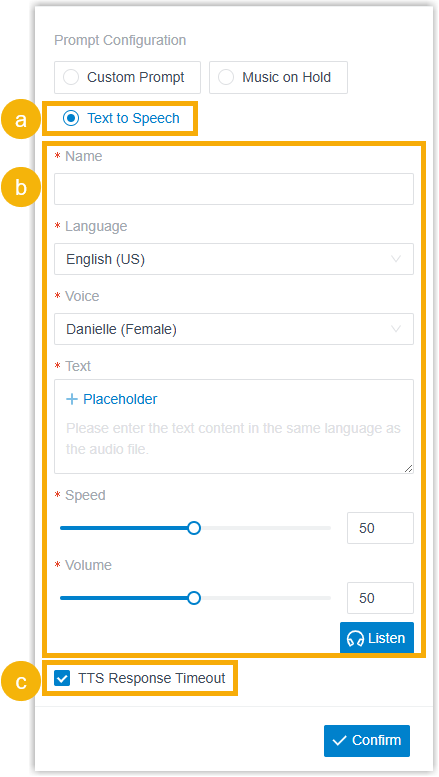
-
Select Text to Speech.
-
Write the message and choose its voice style. Both static and dynamic text are supported.
-
Static text: type the message straight into the Text field.
-
Dynamic text: type the message and insert placeholders backed by variables, so the wording is assembled at call time. You can also set how long the system may take to generate the speech and where to route the caller if that limit is hit.
Example:
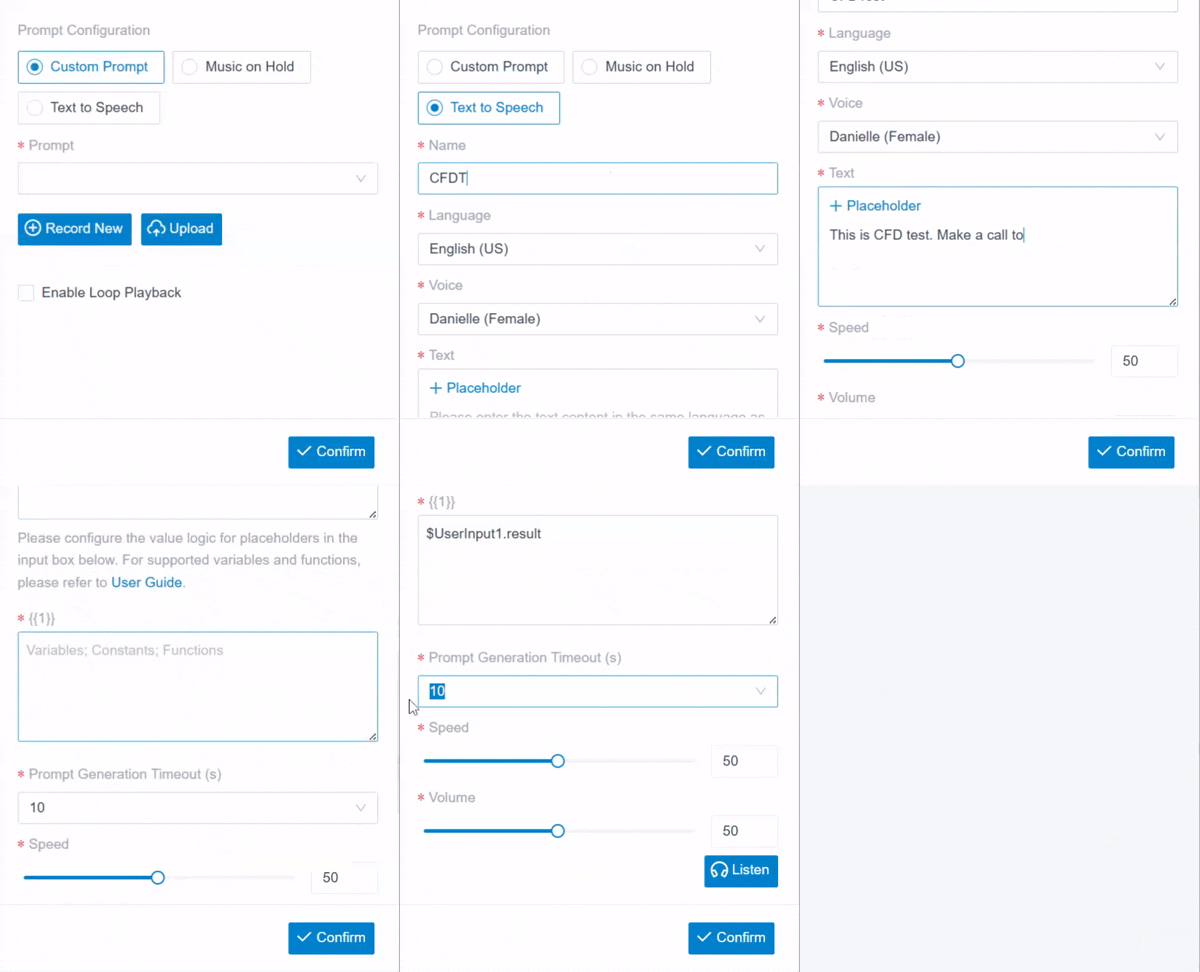
The generated speech is stored on the system and synced to PBX Settings > Voice Prompt > Custom Prompt.
-
-
Optional: to control what happens when the speech takes too long to generate, select TTS Response Timeout, then attach the next components to the TTS Playback Success and TTS Response Timeout branches.
Set the input timeouts
Section titled “Set the input timeouts”Tell the component how long to keep listening for digits.
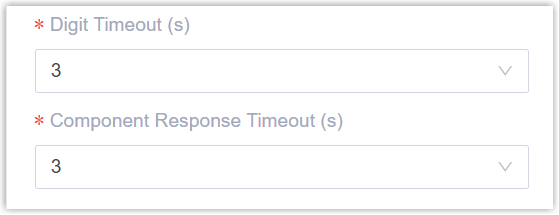
- Digit Timeout(s): how long to wait for the caller to key in the next digit. Choose a value from the list, or type one between 1 and 9999.
- Component Response Timeout(s): how long to wait for the caller to do anything at all. Choose a value from the list, or type one between 1 and 9999.
Finish
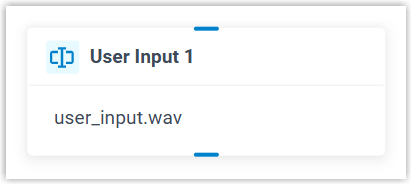
Section titled “Finish”Click Confirm in the bottom-right corner. The prompt you chose now shows on the component.
Component variables
Section titled “Component variables”Every User Input component stores the caller’s entry in variables. Expression-aware components such as Condition can read those values to decide where the call goes next.
| Variable | Type | Description | Example |
|---|---|---|---|
$UserInput{index}.result | String | How the component finished. UserInputResult.Timeout means the caller entered no digits before the timeout and was sent to the timeout destination; UserInputResult.ValidOption means the caller pressed a valid key and was sent to the matching destination. | $UserInput1.result(STRING)=UserInputResult.Timeout |
$UserInput{index}.ttsResult | String | The text-to-speech outcome. UserInputTTSResult.Success means the text was converted and played to the caller; UserInputTTSResult.Timeout means it was not generated in time, so the caller moved straight on with no prompt. | $UserInput1.ttsResult(STRING)=UserInputTTSResult.Success |
$UserInput{index}.userInput | String | The DTMF digits the caller pressed, not counting the end key (# or *). | "2" |
Connect the component
Section titled “Connect the component”A User Input component connects to one downstream component, or two when TTS Response Timeout is on (one for success, one for the timeout). You can connect any of the components below.
| Component | What it does |
|---|---|
| Prompt | Plays an audio prompt or text-to-speech message to the caller. |
| Business Hours | Routes calls to different destinations based on the time of day. |
| Menu | Offers callers a set of options and routes on the DTMF digit they press. |
| User Input | Collects DTMF digits from the caller, usually paired with Condition to route on what was entered. |
| Language | Switches the system-prompt language for the components that follow. |
| Record | Starts recording once the caller connects to another party, with optional notice prompts, or disables recording for a call that would otherwise be recorded. |
| Dial by Number | Lets callers dial a number directly to reach their destination. |
| Dial by Name | An end component that lets callers reach a user by typing the first three letters of their name. |
| Transfer | An end component that hands the caller to a set destination, with an optional prompt announcing the transfer. |
| Hang Up Call | An end component that disconnects the caller. |
| Condition | Routes calls according to logical expressions. |
| Loop | Repeats a group of components a set number of times or until a condition is met. |
| Internal Data Ops | Reads from and writes to the PBX’s built-in database. See Get Extension Presence Status, Set Extension Presence Status, Get Queue Agent, Get Queue Info, Get Agent Status, Set Agent Status, Get System Info, Get System Capacity, Get Extension Info, and Get Company Contact Info. |
| Email Sender | Sends email for real-time notifications, alerts, or user-specific information. |
| Database Access | Runs SQL against a database mid-call to read or update data. |
| HTTP Request | Sends HTTP requests to external servers to exchange data with third-party services. |
Question about this page?
Ask the AI assistant. It starts from this page, then searches the rest of the docs.
Ask Cloud Voice AI
Answers are AI-generated from the docs and may contain mistakes. Verify with the linked pages.