
HTTP Request
The HTTP Request component reaches out to a web server while a call is in progress, letting your call flow trade data with a third-party service. HTTP (HyperText Transfer Protocol) is the same protocol web browsers use to talk to websites. Whatever the server sends back is captured in variables, so later components can act on the response, feeding it into another component or testing it in a condition to decide where the call goes next.
What it does
Section titled “What it does”The component can issue any of the standard HTTP methods. In everyday use, GET reads information from the server and POST or PUT send information to it. The remaining methods cover less common cases.
- GET
- HEAD
- OPTIONS
- POST
- PUT
- TRACE
- DELETE
It also understands a wide range of content types, so you can match whatever the target service expects. The content type tells the server how to interpret the body you send:
application/javascriptapplication/jsonapplication/x-www-form-urlencodedapplication/pdfapplication/xmlapplication/zipmultipart/form-datatext/csstext/htmltext/plainimage/pngimage/jpegimage/gif
Configure the component
Section titled “Configure the component”-
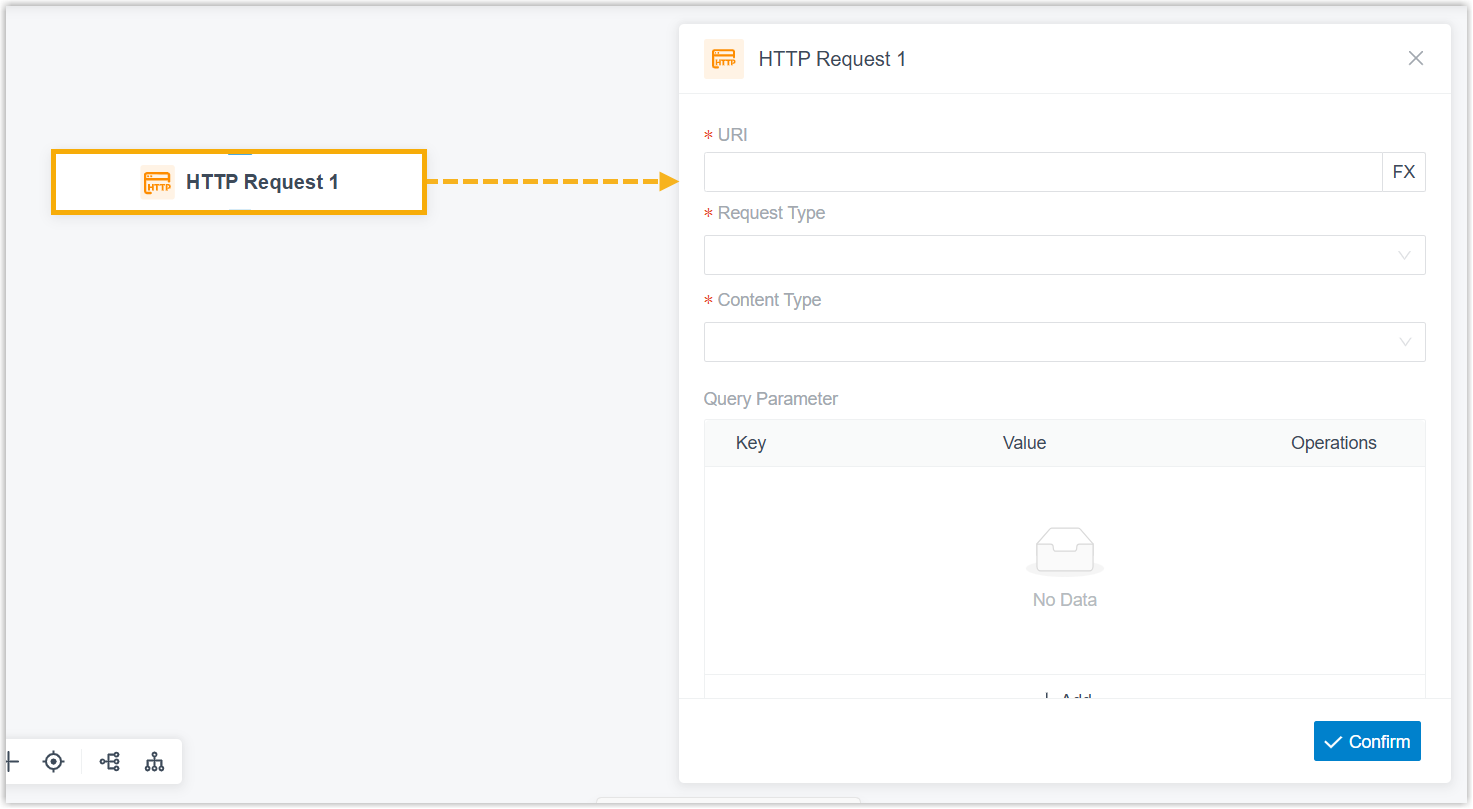
Drag the HTTP Request component onto your call flow, then click it to open its settings.
-
Fill in the request details.
Setting Description URI The address the request is sent to (URI stands for Uniform Resource Identifier, essentially a web address). Type a fixed URI, or click the fx (function) button to build it from an expression. For example, FX_CONCATENATE("https://crm.example.com/check-caller?callernum=",$Session.ani)sends the request to a CRM so it can look up the caller’s number and return the caller type. Here$Session.aniis the caller’s own phone number (ANI, Automatic Number Identification).Request Type The HTTP method to use: GET, HEAD, OPTIONS, POST, PUT, TRACE, or DELETE. Content Type The content type of the request, chosen from the supported list above. Query Parameter Click Add for each parameter you want to append to the URL. Enter a fixed value, or click the fx button to supply an expression. For example, a key of FX_CONCATENATE("call_to_", $Session.did)paired with a value of$Session.anipasses both the dialed number and the caller’s number, so the CRM can tell which service line was called. Here$Session.didis the number the caller dialed to reach you (DID, Direct Inward Dialing).Content The request body. Enter plain text, or embed variables and functions. To insert a variable, type $, pick the variable, and wrap it in single quotes, for example,'$Session.ani'. To insert a function, typeFX, choose and configure it, then wrap it in single quotes, for example,'FX_CONCATENATE("test",$Session.ani)'.Timeout(s) How many seconds to wait for the request to finish. Timeout Destination Optional. Turn this on to route the call somewhere specific when the request times out. After you finish configuring the component, add the follow-on components to its Default Destination and Timeout Destination branches. Header Click Add for each HTTP header the request should carry. Enter a fixed value, or click the fx button for an expression. For example, a header named X-Caller-IDwith a value of$Session.anilets the CRM read the caller’s number straight from the request header and match it to an existing contact. -
Click Confirm in the bottom-right corner.
Variables
Section titled “Variables”Each time the component runs, it stores the response in variables. You can read these from any expression-aware component, Condition, for instance, to retrieve the result and branch on it.
| Variable | Type | Description | Example |
|---|---|---|---|
$HttpRequest{index}.responseContent | String | The body returned in the HTTP response. | {"authenticated": true, "user": "10000"} |
$HttpRequest{index}.responseStatusCode | String | The HTTP status code the request returned. | "200" |
What it can connect to
Section titled “What it can connect to”An HTTP Request component leads to one or two downstream components, two when Timeout Destination is enabled, so you can handle the timeout branch on its own. Any of the following can follow it:
| Component | Purpose |
|---|---|
| Prompt | Play an audio file or a text-to-speech message to the caller. |
| Business Hours | Route the call to different destinations depending on the time of day. |
| Menu | Offer callers a set of options and route them by the DTMF key they press (DTMF, Dual-Tone Multi-Frequency, is the tone a phone sends when a key is pressed). |
| User Input | Collect DTMF digits from the caller, usually paired with Condition to act on what was entered. |
| Language | Change the system prompt language for the rest of the flow. |
| Record | Start recording once the caller connects to another party, with optional notification prompts, or turn recording off for a call that would otherwise be recorded. |
| Dial by Number | Let callers dial a number directly to reach their destination. |
| Dial by Name | An end component that lets callers reach a user by typing the first three letters of their name. |
| Transfer | An end component that sends the caller to a chosen destination, with optional prompts announcing the transfer. |
| Hang Up Call | An end component that disconnects the call. |
| Condition | Route the call based on logical expressions. |
| Loop | Repeat a group of components a set number of times or until a condition is met. |
| Internal Data Ops | Read from and write to the Cloud Voice system’s own database. See Get Extension Presence Status, Set Extension Presence Status, Get Queue Agent, Get Queue Info, Get Agent Status, Set Agent Status, Get System Info, Get System Capacity, Get Extension Info, and Get Company Contact Info. |
| Email Sender | Send an email for real-time notifications, alerts, or user-specific information. |
| Database Access | Run a SQL (Structured Query Language) query or update against a database during the call flow. |
| HTTP Request | Send another HTTP request to an external server to exchange data with a third-party service. |
Question about this page?
Ask the AI assistant. It starts from this page, then searches the rest of the docs.
Ask Cloud Voice AI
Answers are AI-generated from the docs and may contain mistakes. Verify with the linked pages.