
Set a Priority for a Call Queue
Priority Queue lets you give each call queue a weight so that, when an agent belongs to more than one queue, the system knows which waiting caller to connect first. The importance of a call is derived from two things: the weight you assign to its queue and how long the caller has already been waiting. Cloud Voice continuously compares these values across the queues an agent serves and pushes calls from the higher-priority queue toward the front of the line. The result is faster service for your most important callers without leaving everyone else stranded.
How it works
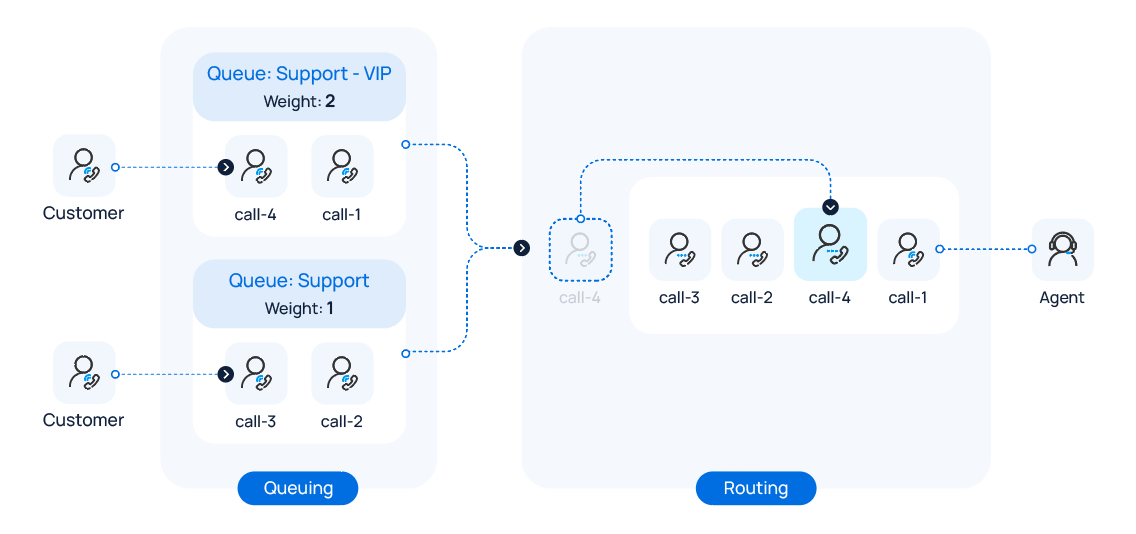
Section titled “How it works”Picture an agent who handles two queues at once, for example Support-VIP and Support, each carrying its own weight. When calls are waiting in both queues, Cloud Voice offers the agent the call from the higher-weighted queue first, so VIP callers get a quicker answer.
Set the priority
Section titled “Set the priority”-
Sign in to the Cloud Voice management portal and open Call Features > Queue.
-
Find the queue you want to prioritize and click the edit icon
 next to it, then select the Preferences tab.
 -
Enable the Priority Queue switch.
-
In the Weight field, enter the queue’s starting weight.
Use any whole number from 1 to 999. A higher number means a higher priority. Cloud Voice weighs the queues against one another and hands calls from the heavier queue to agents first, so a call in a queue weighted 2 is answered ahead of a call in a queue weighted 1.
-
Optional: So that callers in a lower-priority queue don’t wait indefinitely, you can let a queue gain weight the longer a call sits in it.
a. Select the Enable Acceleration Weight checkbox.
b. In the Acceleration (s) field, enter how many seconds a call must wait before its queue’s weight climbs by 1. Valid values run from 10 to 1800. Cloud Voice recalculates the queue’s total weight from its starting weight plus the caller’s wait time:
Queue Weight = Weight + (Waiting Time / Acceleration) * 1 -
Click Save.
Result
Section titled “Result”Once an agent is logged in to several queues and calls are waiting in more than one of them, Cloud Voice recalculates and compares each queue’s weight and connects the agent to the call in the highest-priority queue first.
Worked example
Section titled “Worked example”The following walkthrough shows how weighting steers call distribution. Agent Leo Ball is signed in to two support queues, Support - VIP and Support, configured like this:
| Setting | Support - VIP | Support |
|---|---|---|
| Initial Weight | 2 | 1 |
| Acceleration Weight | Disabled | 60s |
With Leo available and calls waiting in both queues, here is what happens:
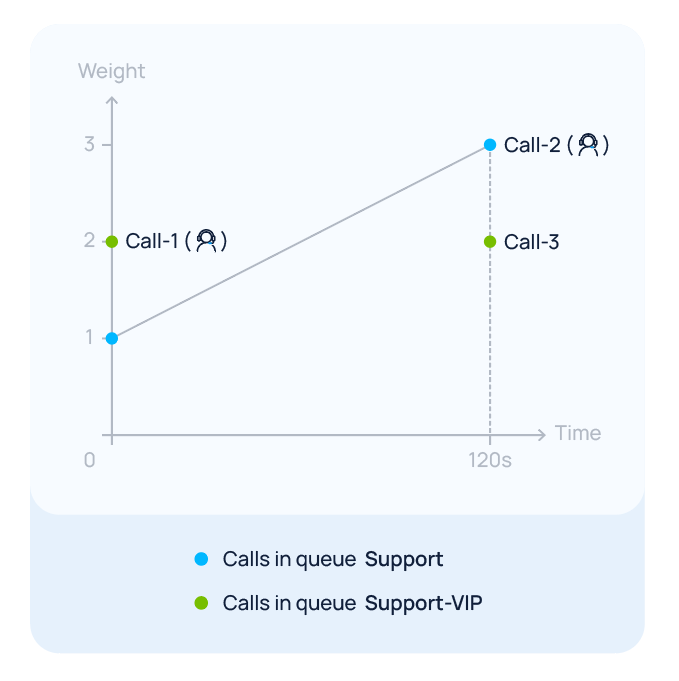
- Call-1 arrives in Support - VIP at the same moment Call-2 arrives in Support. Because Support - VIP carries a weight of 2 against Support’s 1, Leo takes Call-1 first while Call-2 waits.
- Call-3 then arrives in Support - VIP after Call-2 has already spent 120 seconds waiting in Support. Support - VIP still weighs 2, but Support’s weight has grown to
1 + (120 / 60) * 1 = 3. Since Support now outweighs Support - VIP (3 versus 2), Leo answers Call-2 as soon as he finishes his current call.
Question about this page?
Ask the AI assistant. It starts from this page, then searches the rest of the docs.
Ask Cloud Voice AI
Answers are AI-generated from the docs and may contain mistakes. Verify with the linked pages.