
View WhatsApp Message Templates
Cloud Voice pulls the approved message templates from your WhatsApp Business Account so agents can send structured, pre-approved messages to customers. This page explains how to review the templates that are available on a WhatsApp channel and how to keep the list current.
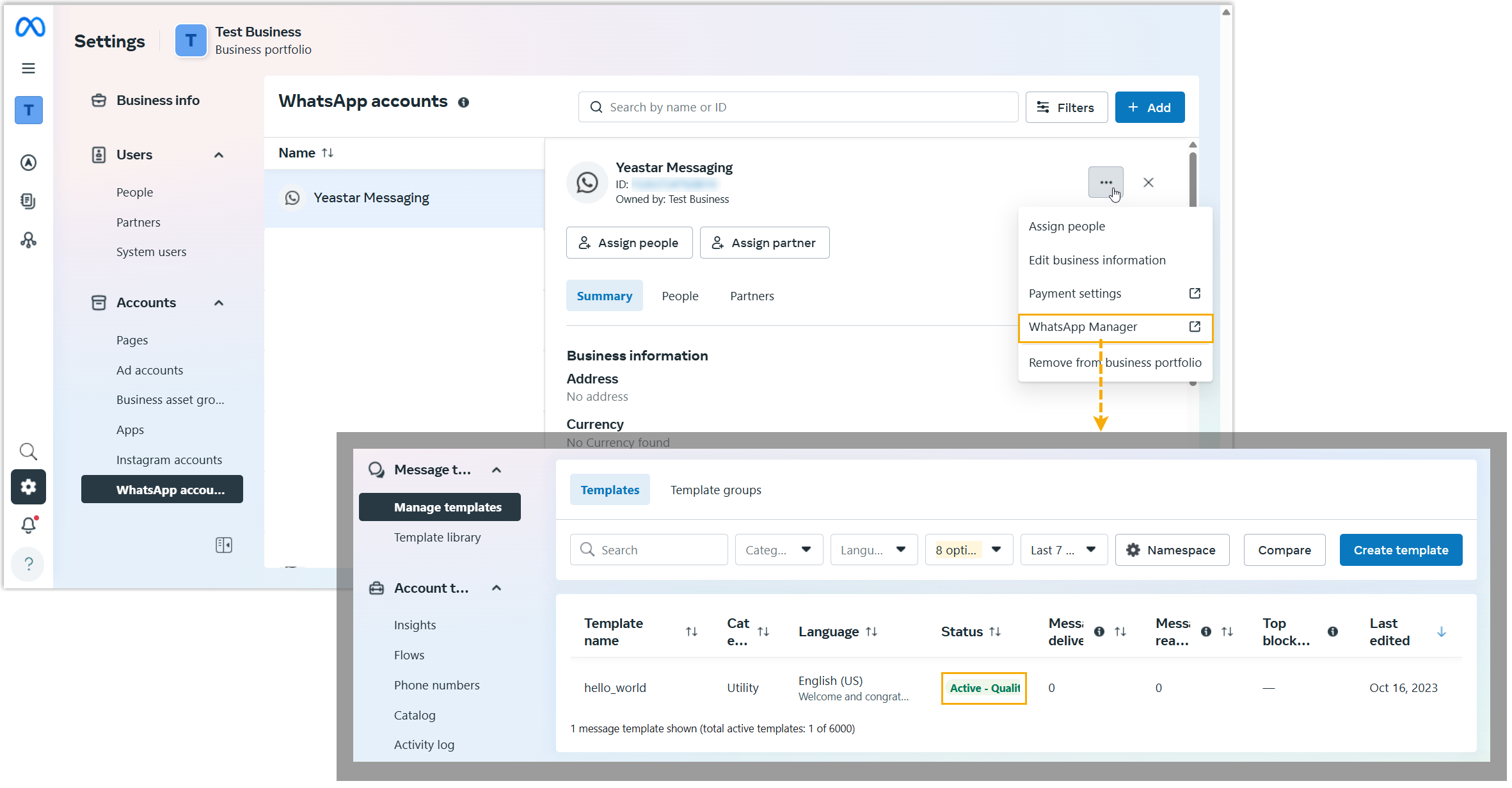
Templates are synchronized automatically using the WhatsApp Business Account ID tied to each WhatsApp channel. Within WhatsApp’s 24-hour customer service window, agents can reply freely to inbound messages. Outside that window, for example, when starting a brand-new conversation or running a bulk WhatsApp campaign, messages must be sent using one of these synchronized templates.
For how agents apply templates in day-to-day conversations, see Start a message session via a WhatsApp channel.
Prerequisites
Section titled “Prerequisites”- Your phone system is running firmware 84.20.0.21 or later.
- The templates exist and have been approved in your WhatsApp Business Account.
- A WhatsApp channel is set up and linked to that account.
View the templates on a channel
Section titled “View the templates on a channel”-
Sign in to the management portal and go to Messaging > Message Channel.
-
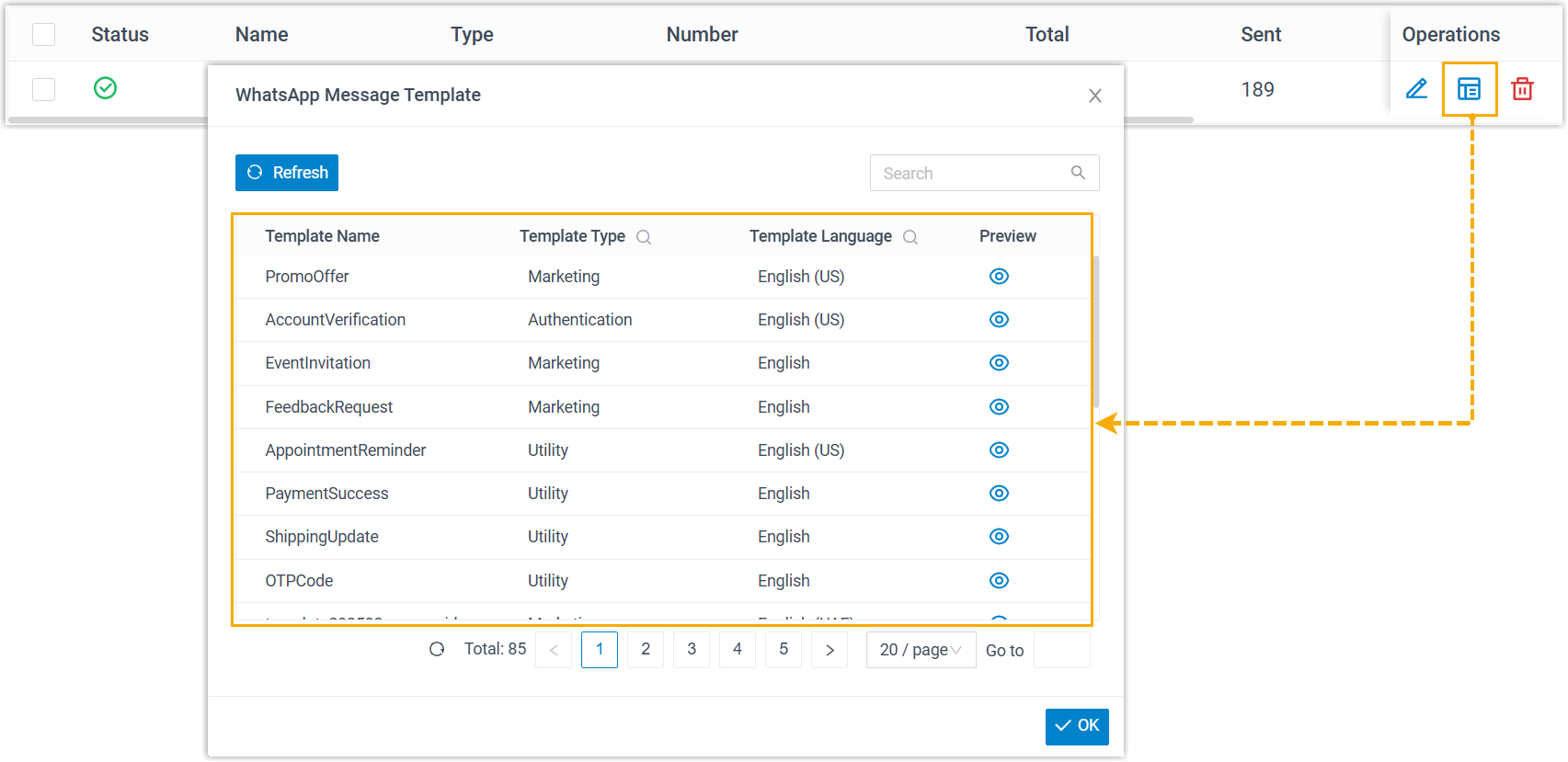
Next to the WhatsApp channel, click the templates icon
 .
.A window opens listing every template synchronized from your WhatsApp Business Account.
-
To see how a template reads, click the preview icon
 beside it.
Refresh the template list
Section titled “Refresh the template list”To pull the newest templates and content, click Refresh in the template window.
Question about this page?
Ask the AI assistant. It starts from this page, then searches the rest of the docs.
Ask Cloud Voice AI
Answers are AI-generated from the docs and may contain mistakes. Verify with the linked pages.