
Customize Extension List
The Extension panel shows the list of extensions you can monitor and act on. What appears there out of the box depends on how your system administrator has set things up: if an organizational structure is in place, you may see the default extension group, otherwise the panel may start empty. Either way, you can tailor the list yourself so it holds only the departments and groups you care about, then order them to match how you work. You can do this from either the Cloud Voice App web client or desktop client.
Before you begin
Section titled “Before you begin”Make sure your environment meets these minimums:
- PBX server (Private Branch Exchange, the phone system server that routes your calls): version 84.18.0.59 or later
- Cloud Voice App (Desktop): version 1.10.2 or later
Choose which groups to display
Section titled “Choose which groups to display”-
On the Extension panel, click the customize icon
 .
. -
In the window that opens, tick the departments or extension groups you want to see, then click Confirm.
Your selections now appear on the Extension panel.
Reorder the list
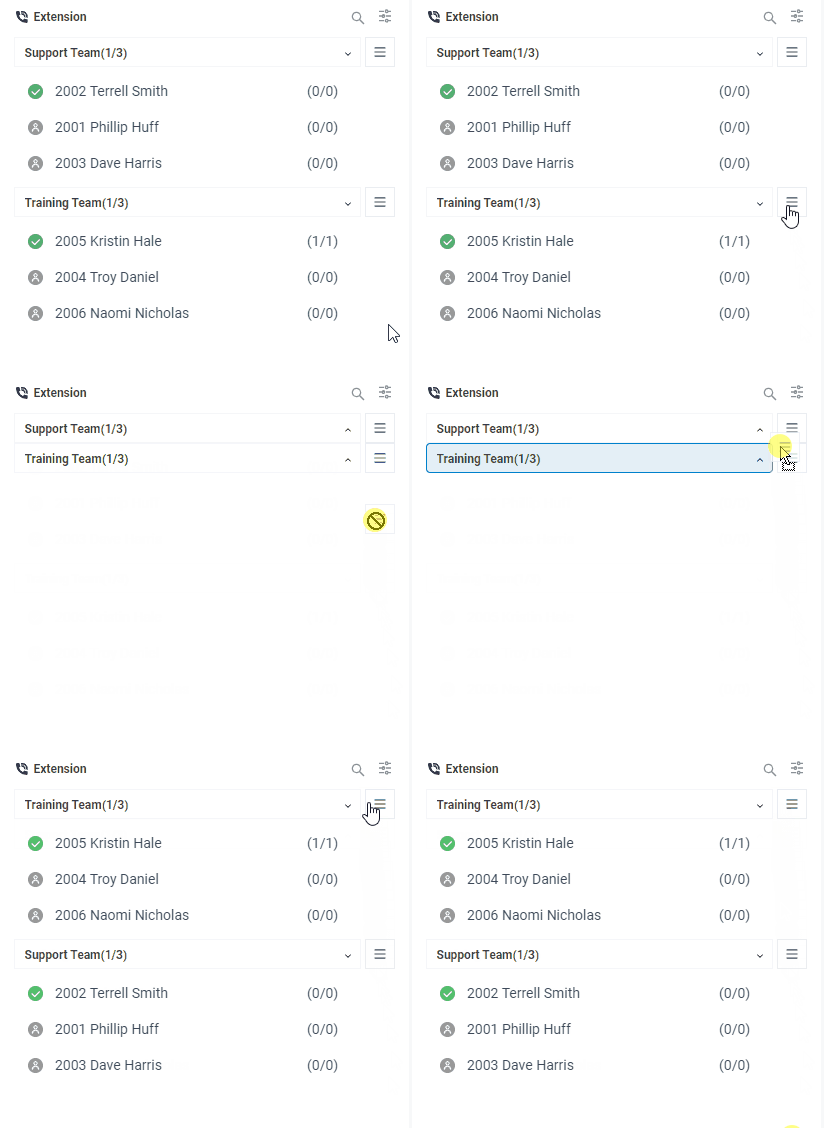
Section titled “Reorder the list”To change the order in which departments and groups are listed, hover over the sort handle  , then drag the item up or down and release it in the position you want.
Question about this page?
Ask the AI assistant. It starts from this page, then searches the rest of the docs.
Ask Cloud Voice AI
Answers are AI-generated from the docs and may contain mistakes. Verify with the linked pages.