
Switch Call Recording Status
When your administrator turns on recording for an extension, trunk, conference, or queue, any matching call is captured automatically the moment it connects. From the Operator Panel you can take manual control of that recording during a live call: pause it so a sensitive exchange (such as a customer reading out payment details) is left off the recording, resume it afterward, or begin recording a call that was never set to be recorded in the first place. What you are allowed to do depends on the permissions attached to your extension.
Before you begin
Section titled “Before you begin”Manual recording controls are permission-gated, so confirm the right permission is in place for what you want to do.
- To change the recording status of your own calls, your extension needs either the Pause/Resume permission or the Start/Pause/Resume permission.
- To change the recording status of a group member’s calls, you need the Switch extensions’ recording status permission.
Switch the recording status
Section titled “Switch the recording status”-
Open the Inbound & Internal Calls panel or the Outbound Calls panel and move your pointer over the active call you want to control.
-
To stop capturing audio, right-click the call and choose Pause Recording.
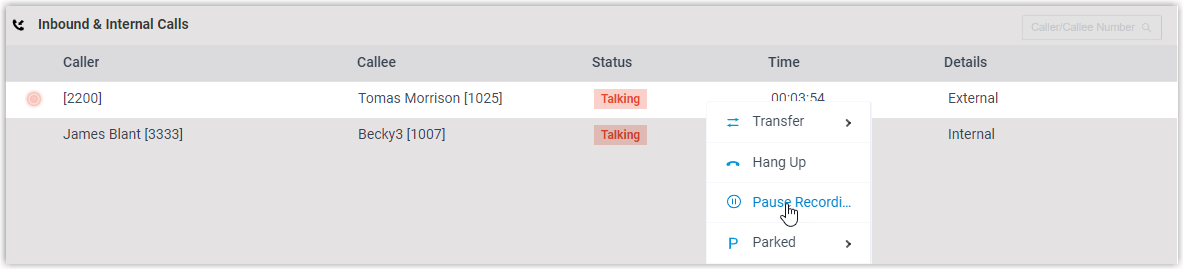
The recording indicator stops blinking and switches to the paused icon
 .
. -
To begin recording, or to pick recording back up after pausing, right-click the call and choose Recording.
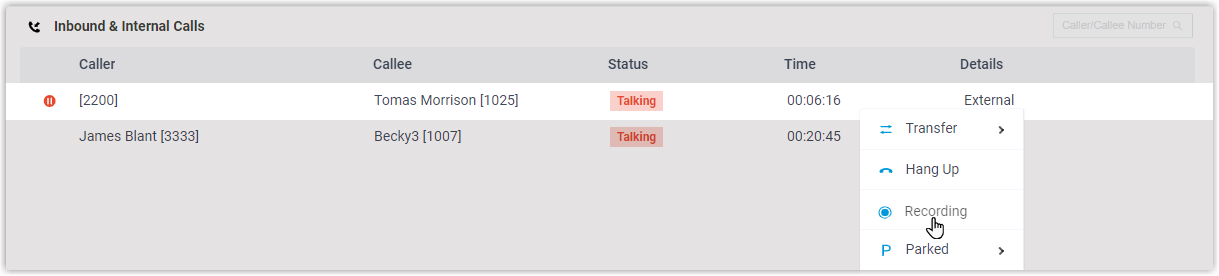
The indicator changes to the active recording icon
 and begins blinking again to show that audio is being captured.
Question about this page?
Ask the AI assistant. It starts from this page, then searches the rest of the docs.
Ask Cloud Voice AI
Answers are AI-generated from the docs and may contain mistakes. Verify with the linked pages.