
Allow Agents to Identify Callers from Company Contacts in Queue Panel
The Queue Panel is the live screen agents and managers use to watch and handle calls waiting in a queue. By default, it follows your contact visibility rules, so an agent may not see who is calling even when the number belongs to a saved company contact. You can override this for individual queues: grant the right Queue Panel permission and set up caller matching, and every agent working that queue will see the matching contact’s name whenever a company contact calls in. This gives agents context before they answer, without exposing your full company directory.
Step 1. Grant the permission to agents in a queue
Section titled “Step 1. Grant the permission to agents in a queue”- Open the queue you want to configure.
- In the Cloud Voice web portal, go to Call Features > Queue.
- Find the queue in the list and click the edit icon
 next to it.
- Turn on contact matching for the agents.
-
Select the Queue Panel Permissions tab.
-
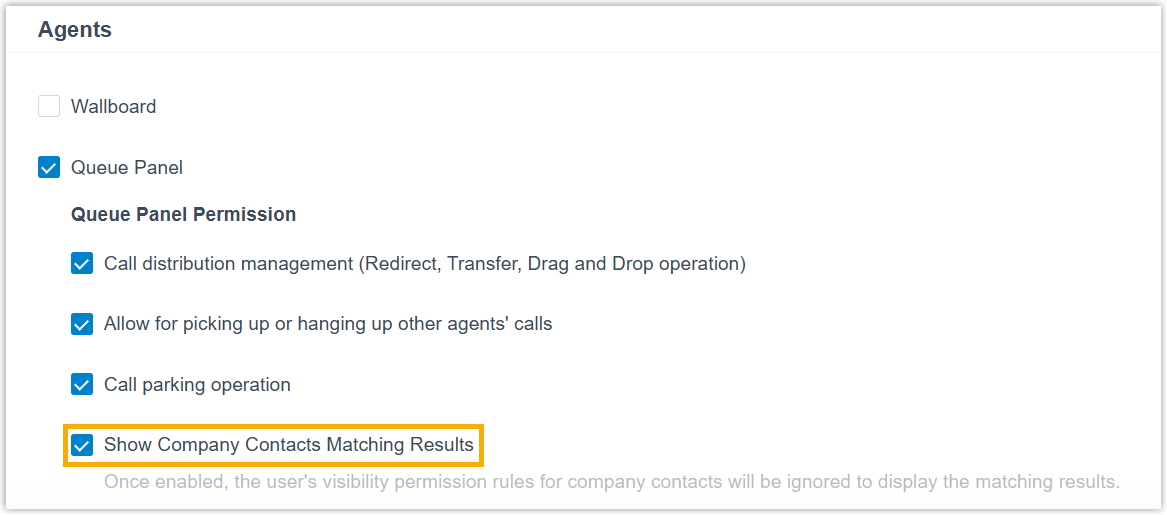
Scroll to the Agents section and select Show Company Contacts Matching Results.
-
Click Save, then Apply.
-
Step 2. Set up company contacts matching
Section titled “Step 2. Set up company contacts matching”-
Open the matching options for company contacts.
-
Go to Contacts > Company Contacts.
-
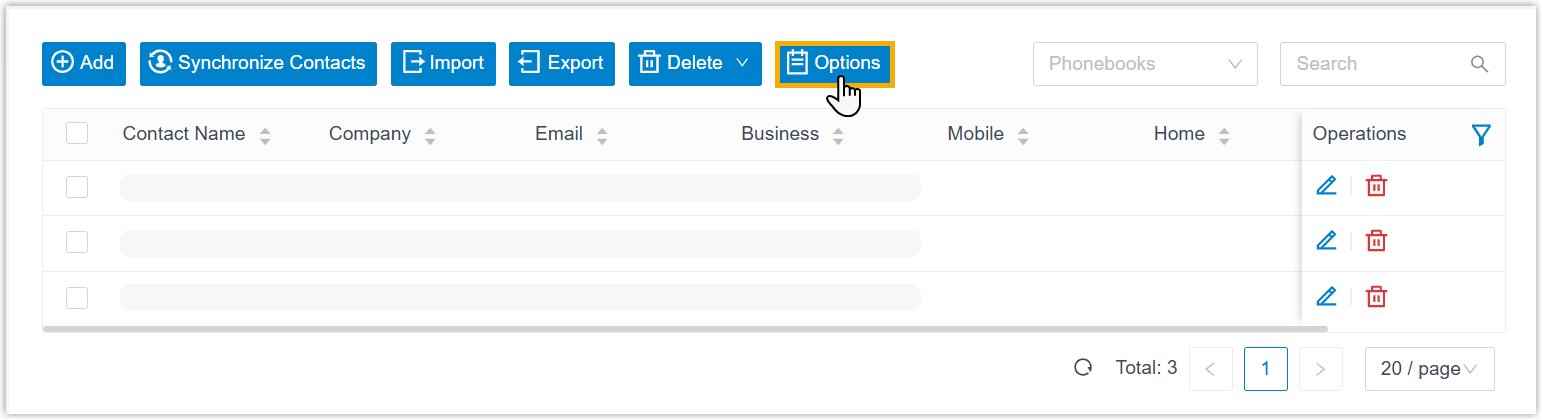
On the Company Contacts page, click Options.
-
-
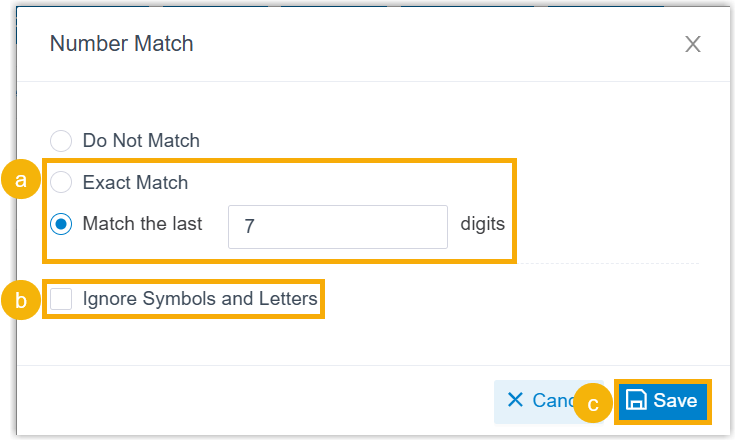
In the dialog that opens, define how incoming Caller IDs (the phone number presented with an inbound call) are matched to your contacts.
-
Choose a matching method:
Option Description Exact Match Shows the contact name only when the incoming Caller ID matches a saved number exactly. Match the last {number}digitsCompares the trailing digits of the incoming Caller ID against your saved numbers. If the Caller ID has this many digits or fewer, it must match a saved number exactly for the name to appear. If the Caller ID is longer, the name appears when its last {number}digits match those of a saved number. -
Optional: To disregard symbols and letters while matching numbers, select Ignore Symbols and Letters.
-
Click Save.
-
Result
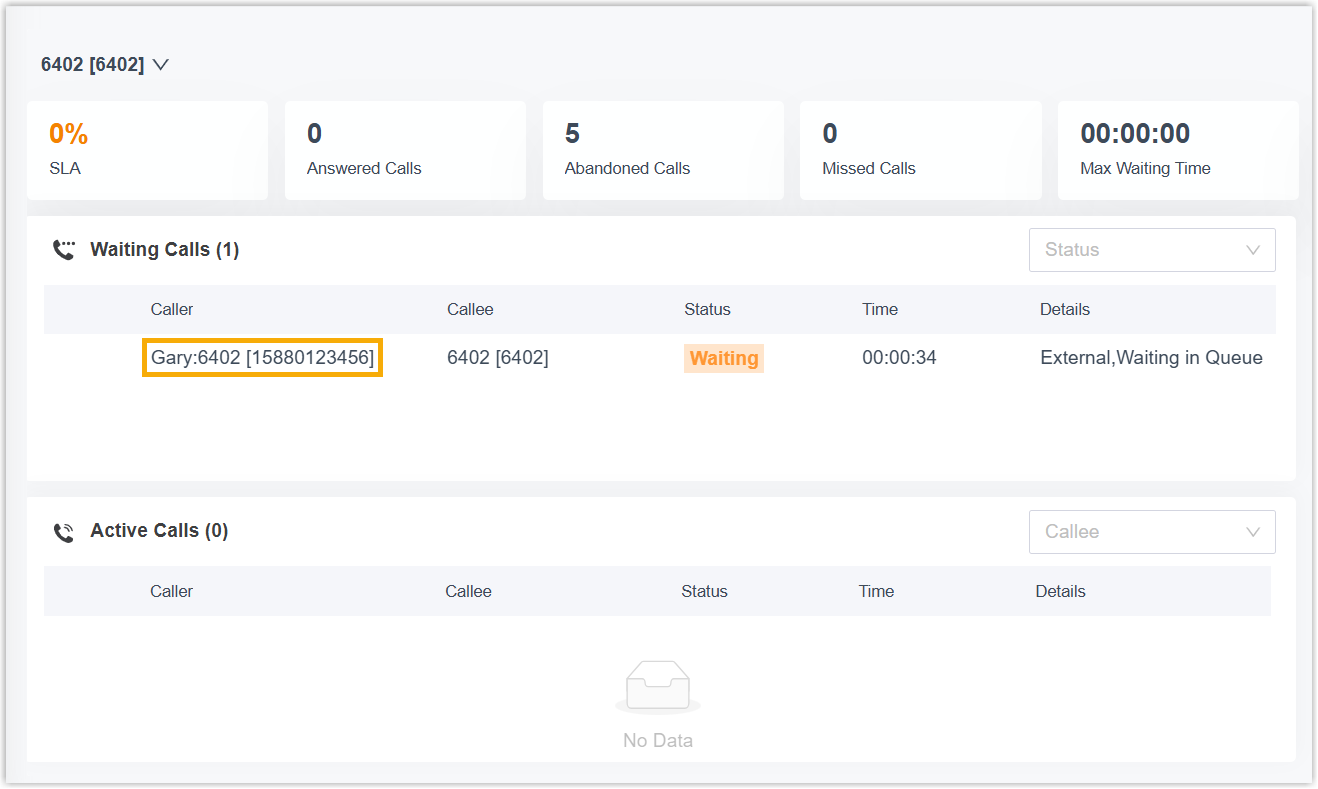
Section titled “Result”Now, when a saved company contact calls one of these queues and a match is found, agents assigned to the queue see the contact’s name in the Queue Panel.
Question about this page?
Ask the AI assistant. It starts from this page, then searches the rest of the docs.
Ask Cloud Voice AI
Answers are AI-generated from the docs and may contain mistakes. Verify with the linked pages.