
Inbound Queue Logs for Agent Report
The Inbound Queue Logs for Agent report breaks down how each agent handled the queue calls routed to them over a period you choose. Every row is a single queue call, with its wait, talk, and hold times attached to the agent who took it, so you can see agent activity at a glance. Run it when you need to check how a particular agent or queue performed, find missed or abandoned calls, or produce a shift or service-level summary. This page shows how to open the report and defines each metric it records.
Open the Inbound Queue Logs for Agent report
Section titled “Open the Inbound Queue Logs for Agent report”-
Sign in to the PBX web portal and go to Reports and Recordings > Call Reports.
-
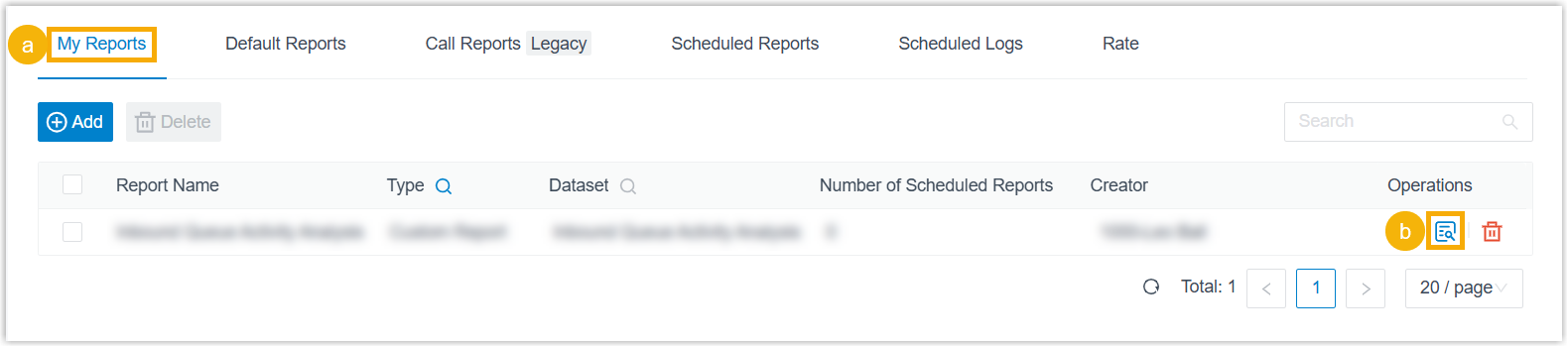
Open the My Reports tab, then click the view icon next to the report.
-
Set the report filters.

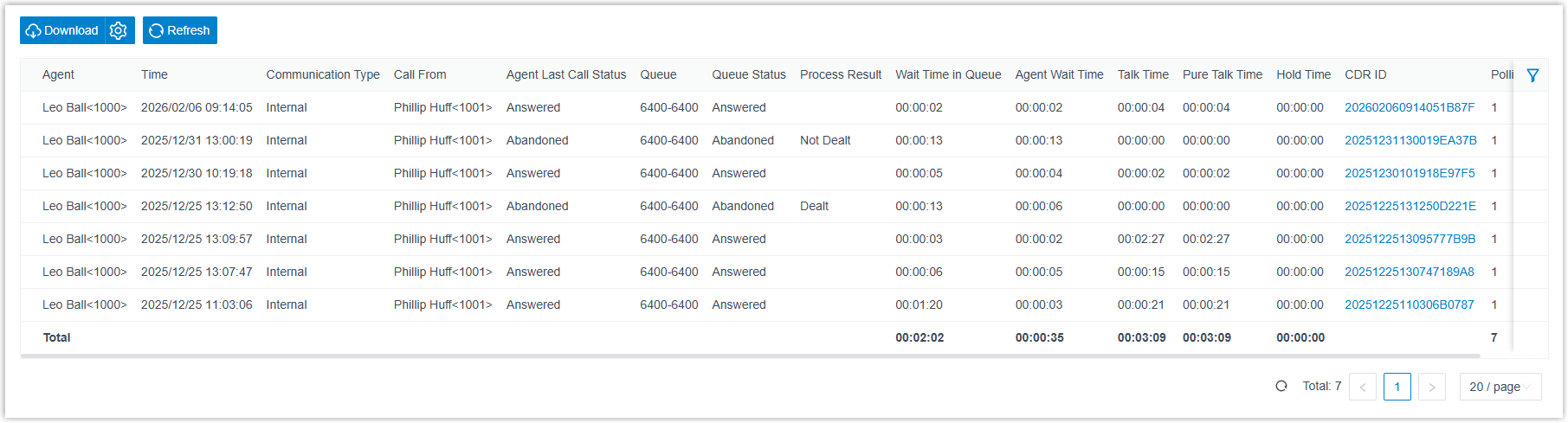
Filter Description Queue Limit the report to one or more queues. Agent Limit the report to one or more agents. Time Set the date range the report covers. Communication Type Restrict the report to one or more communication types. Call From Match a caller by number or name. Agent Last Call Status Filter by the agent’s most recent call status. Queue Status Filter by the outcome of the queue call. Process Result Filter by how an abandoned or missed queue call was followed up. Wait Time in Queue Match on how long callers waited in the queue before connecting to an agent. Agent Wait Time Match on how long agents took to answer queue calls. Talk Time Match on the time agents spent talking to callers, hold time included. Pure Talk Time Match on the time agents spent talking to callers, hold time excluded. Hold Time Match on how long agents kept queue calls on hold. Source Trunk Limit the report to the trunk (the connection to your phone-service provider) that incoming calls arrived on. DID/DDI Match the DID (Direct Inward Dialing, also called DDI, Direct Dialing Inward) number the caller dialed. Exclude Calls Abandoned within Xs Set a ring duration below which short abandoned calls are dropped from the report. Exclude Calls within Xs Set a talk duration below which short answered calls are dropped from the report. The report matching your filters appears on the page.
Adjust the columns
Section titled “Adjust the columns”Optionally, tailor the column layout so the indicators you care about stay in view.
| Action | How |
|---|---|
| Choose which columns appear | Click the column-selection icon, then tick the columns you want to show. |
| Freeze a column | Click the drag handle next to a field and drop it onto Left (Freeze Column) or Right (Freeze Column) to pin it in place.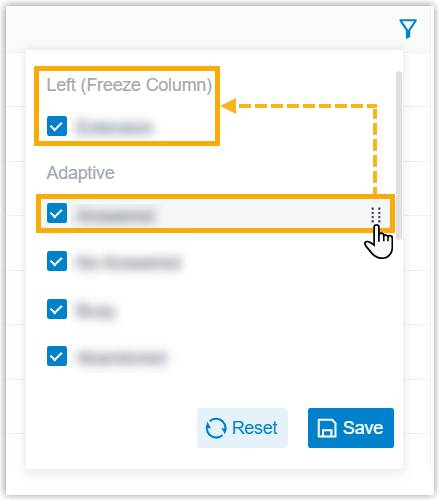 |
| Reorder columns | Click the drag handle next to a field and move it to the position you want.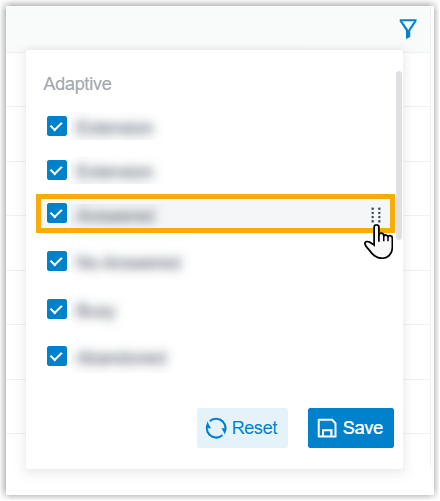 |
Save, schedule, or download the report
Section titled “Save, schedule, or download the report”Optionally, keep the report for later, have it emailed on a schedule, or export a copy.
| Action | How |
|---|---|
| Add to My Reports | Save the report to your My Reports list for quick access. At the bottom of the page, click Add to My Reports, enter a name that identifies it, fine-tune the filters or metrics, then click Save. |
| Add to Scheduled Reports | Have the report emailed automatically on a recurring basis. At the bottom of the page, click Add to Scheduled Reports, then fill in the scheduling options for the task. |
| Download the report | Export the report to your computer for offline review or further analysis. |
To control the export, click the settings icon before downloading, adjust the options below, and save your changes.
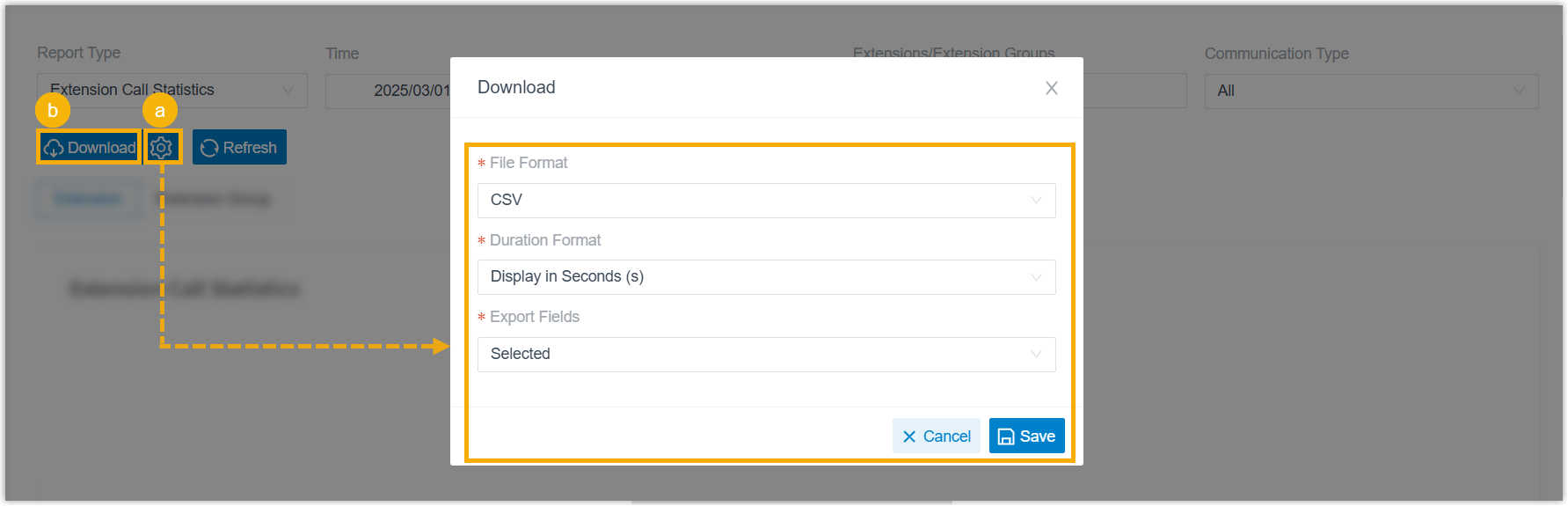
- File Format: the format of the exported file: CSV, XLS, PDF, or HTML.
- Duration Format: how every duration field is shown: Display in Second (s) or Display as HH:MM:SS.
- Export Fields: which fields to include: All (every available column) or Selected (only the columns currently shown in the report).
When the settings are ready, click Download.
Report metrics
Section titled “Report metrics”| Metric | Description |
|---|---|
| Agent | The agent’s number and name. |
| Time | When the caller reached the inbound queue. |
| Communication Type | The call’s communication type. |
| Call From | The caller who reached the queue. |
| Agent Last Call Status | The agent’s most recent call status. |
| Queue | The queue’s number and name. |
| Queue Status | The status of the call. |
| Process Result | How an abandoned or missed queue call was followed up. |
| Wait Time in Queue | How long the caller waited in the queue before connecting to an agent. |
| Agent Wait Time | How long the agent took to answer the queue call. |
| Talk Time | Time the agent spent talking to the caller, including hold time. |
| Pure Talk Time | Time the agent spent talking to the caller, excluding hold time. |
| Hold Time | How long the agent held the queue call. |
| Source Trunk | The trunk the incoming queue call arrived on. |
| DID/DDI | The DID (Direct Inward Dialing) number the caller dialed to reach the queue. |
| CDR ID | The unique identifier of the CDR (Call Detail Record, the system’s per-call log entry) for this call. |
| Polling Attempts | How many times the queue attempted to ring the agent. |
Question about this page?
Ask the AI assistant. It starts from this page, then searches the rest of the docs.
Ask Cloud Voice AI
Answers are AI-generated from the docs and may contain mistakes. Verify with the linked pages.