
Import Phone System Data into Power BI
Once Cloud Voice is synchronizing your phone system data to an external database, you can register that database as a data source in Power BI and load it into the ready-made Cloud Voice report template. Power BI is Microsoft’s business intelligence tool: it turns raw table data into charts and dashboards, so this is how you visualize call activity outside of Cloud Voice. The template ships with variants for each supported database engine, so pick the one that matches where your data lives. This page walks through the setup for PostgreSQL, MySQL, and Microsoft SQL Server.
Import data from PostgreSQL
Section titled “Import data from PostgreSQL”Before you begin
Section titled “Before you begin”- Download and extract the Cloud Voice Power BI template package. It contains a separate template file for each database type; use the PostgreSQL one.
- Install Power BI Desktop and the PostgreSQL ODBC driver. ODBC (Open Database Connectivity) is the standard interface Windows uses to talk to a database.
-
Create an ODBC connection to the database:
-
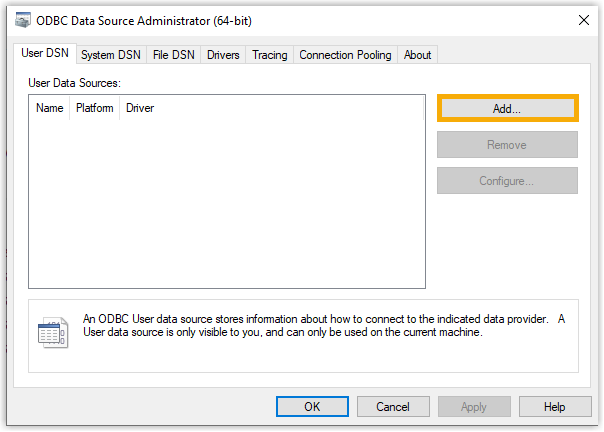
Open ODBC Data Sources (64-bit).
-
On the User DSN tab, click Add. A DSN (Data Source Name) is the saved connection profile that Power BI will point to.
-
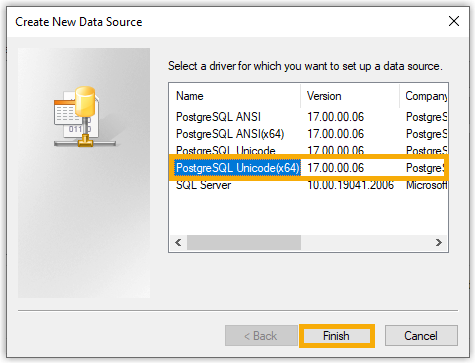
Choose PostgreSQL Unicode(x64) and click Finish.
-
Enter the connection details described below, then click Save.
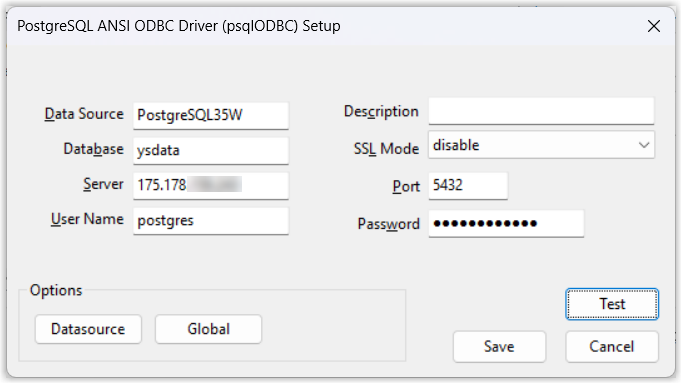
Field What to enter Database The name of the database. Server The IP address or domain name of the host running the database. Port The port the database listens on. User Name The account used to connect to the database. Password The password for that account. -
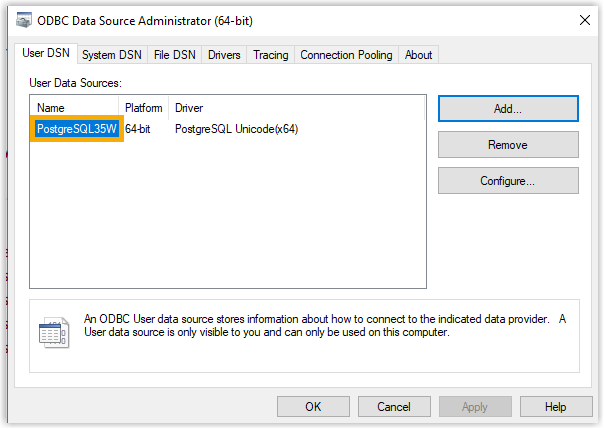
Take note of the DSN name shown in the list, you will select it in a later step.
-
-
Open Power BI Desktop.
-
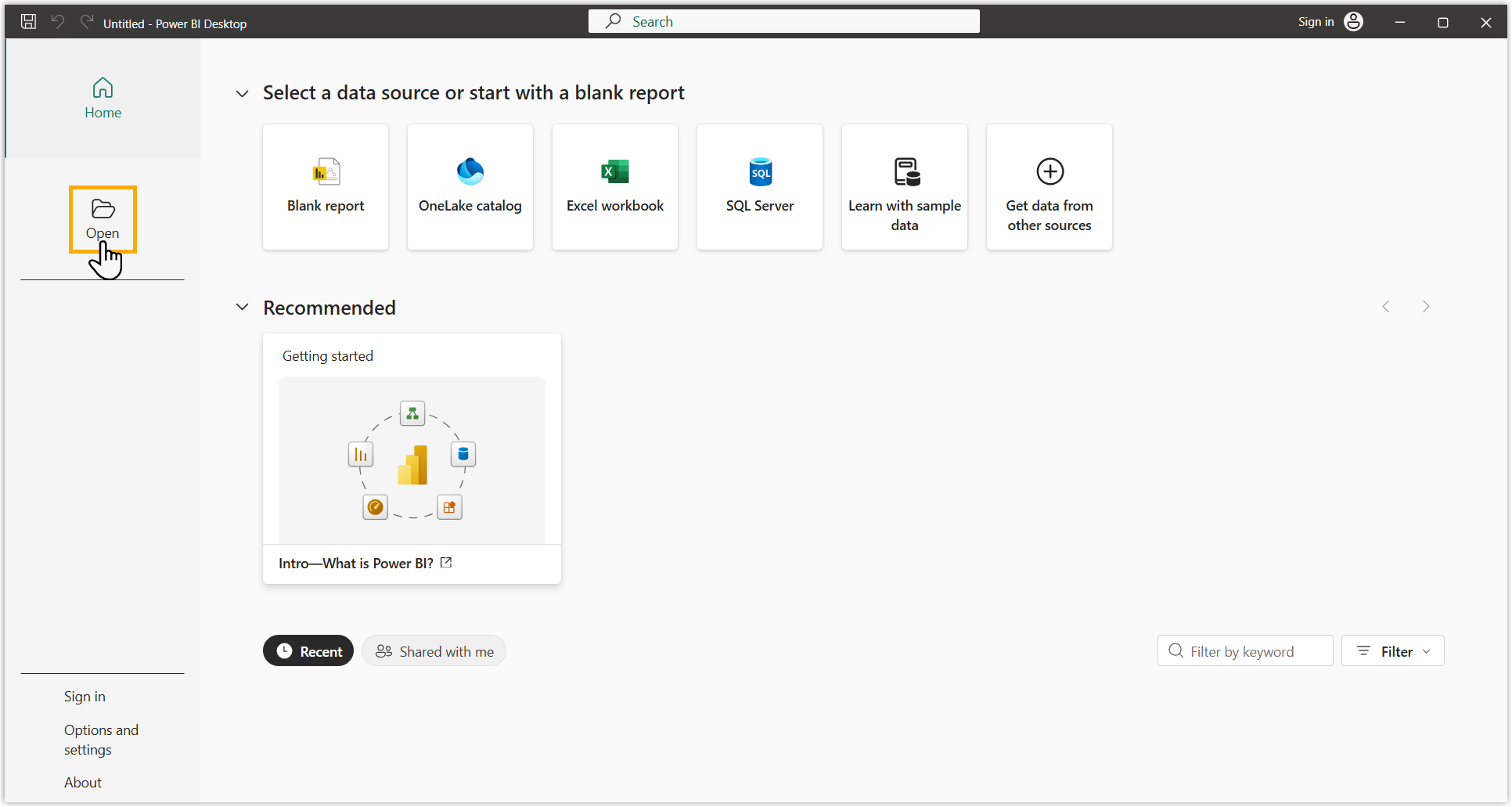
Click Open and select the PostgreSQL template file.
-
Repoint the template at your database and supply credentials:
-
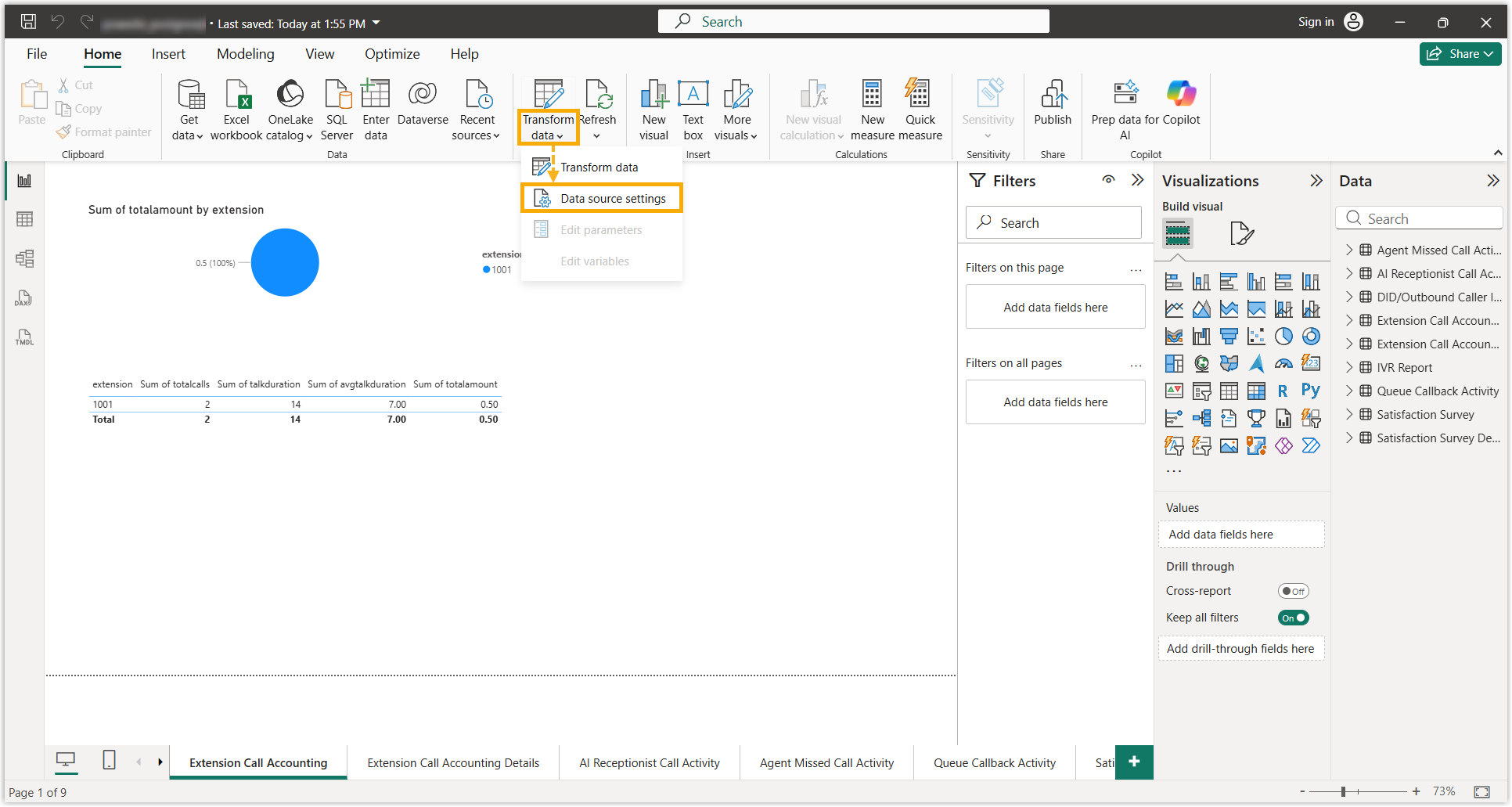
On the toolbar, click Transform data and choose Data source settings.
-
Update the source:
-
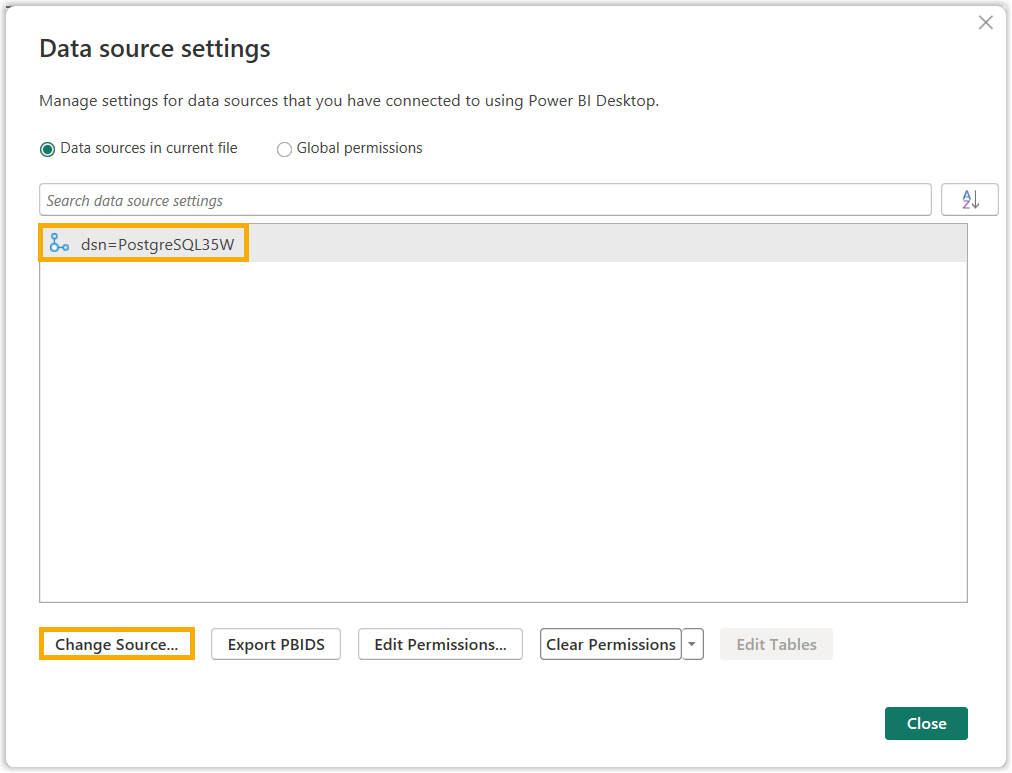
Select the default data source and click Change Source.
-
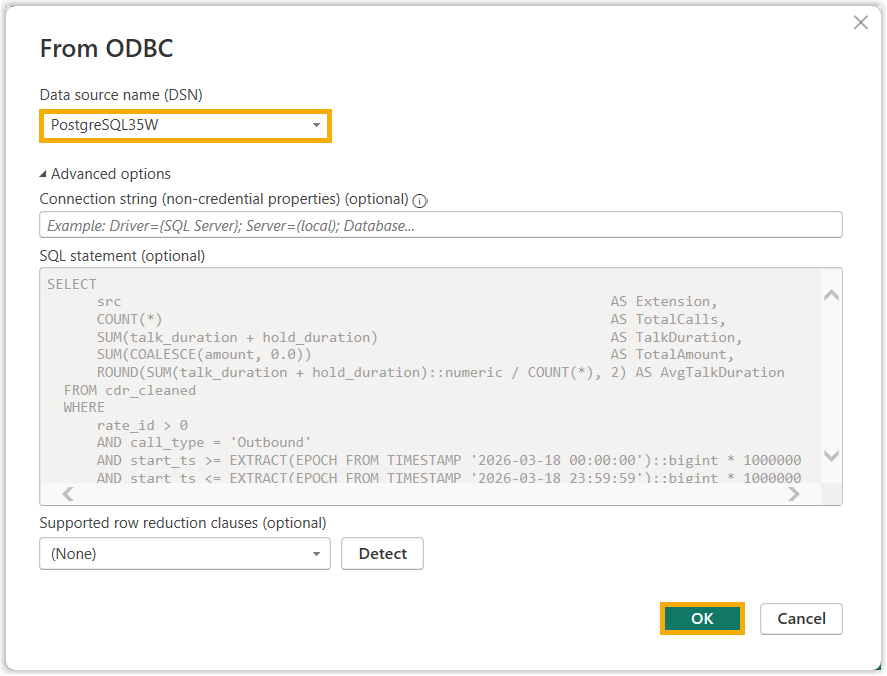
From the Data source name (DSN) list, pick the DSN you created and click OK.
-
-
Set the access credentials:
-
Click Edit Permissions.
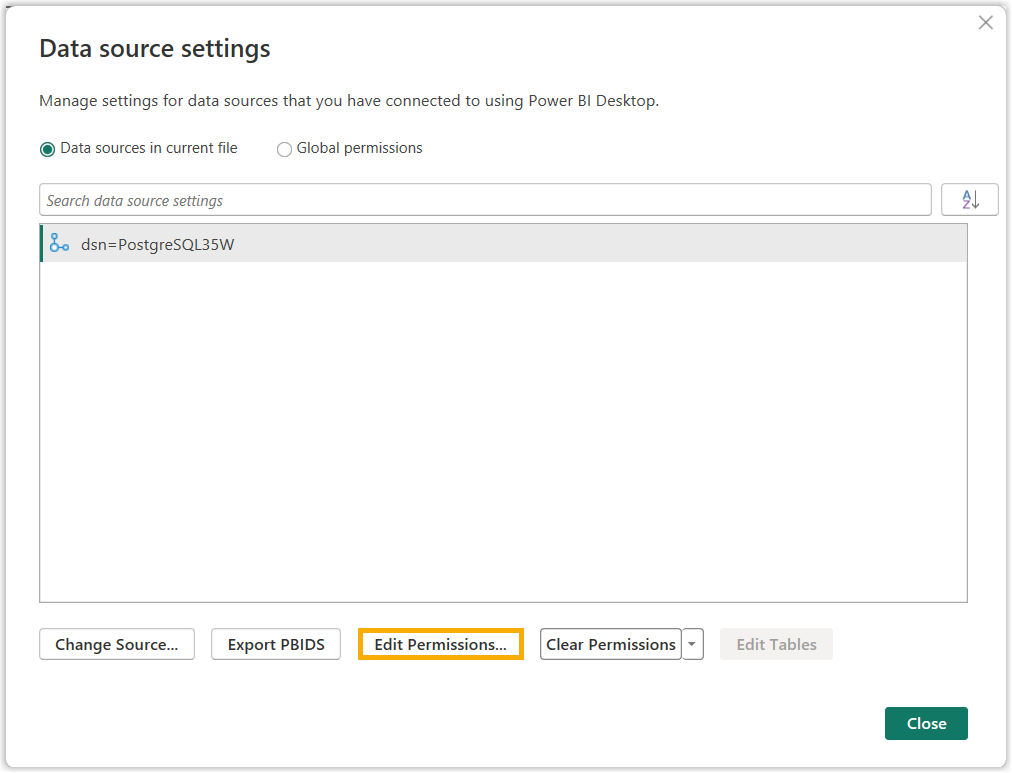
-
In the dialog, click Edit.
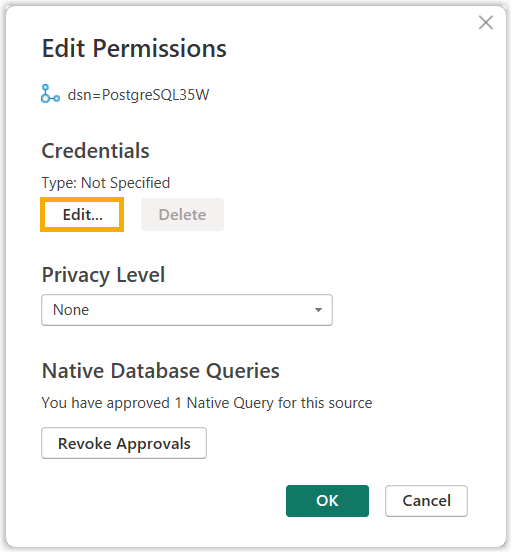
-
Select Database, enter the credentials below, and click Save.
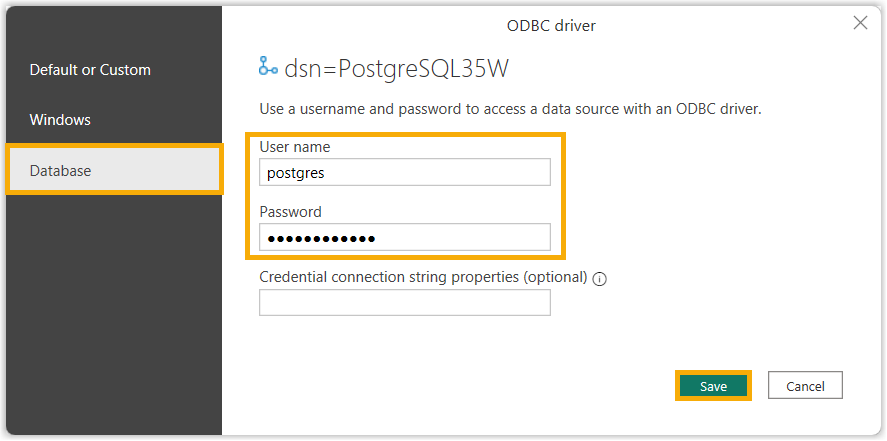
Field What to enter User name The account used to connect to the database. Password The password for that account.
-
-
Save your changes.
-
-
Click Refresh to run every SQL query in the template. SQL (Structured Query Language) is the language the template uses to pull each report from the database.
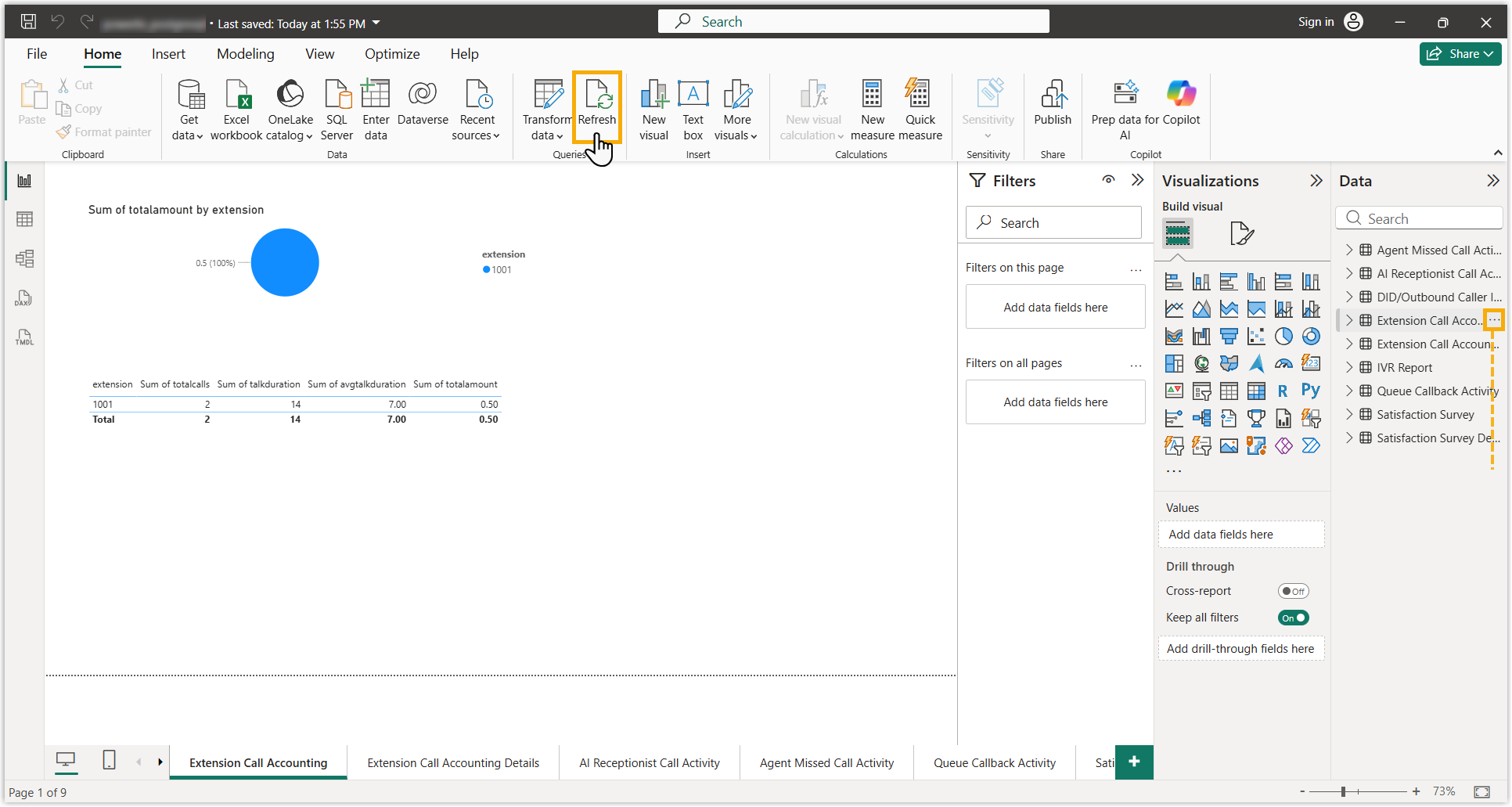
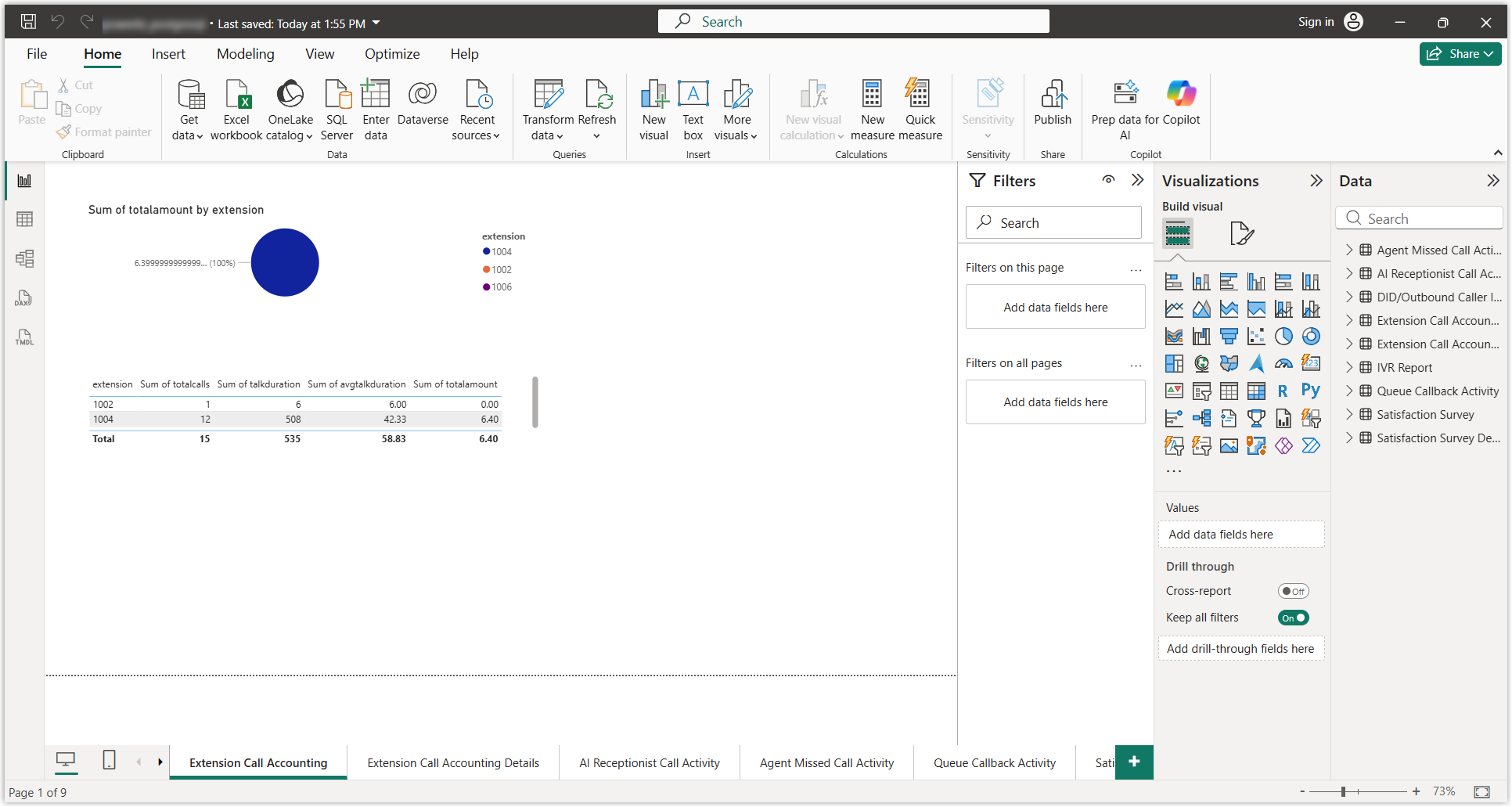
Your phone system data loads and appears on the report pages.
Import data from MySQL
Section titled “Import data from MySQL”Before you begin
Section titled “Before you begin”- Download and extract the Cloud Voice Power BI template package and select the MySQL template.
- Install Power BI Desktop and MySQL Connector/NET.
- If your MySQL server uses SSL (Secure Sockets Layer, the encryption for the database connection), install its certificate first:
- Download the SSL public certificate.
- Add it to the Trusted Root Certification Authorities store:
-
Run
certmgr.mscto open Certificate Manager.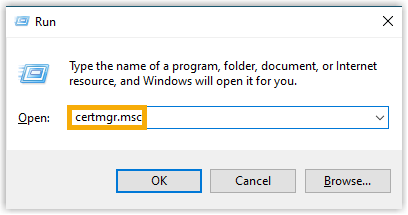
-
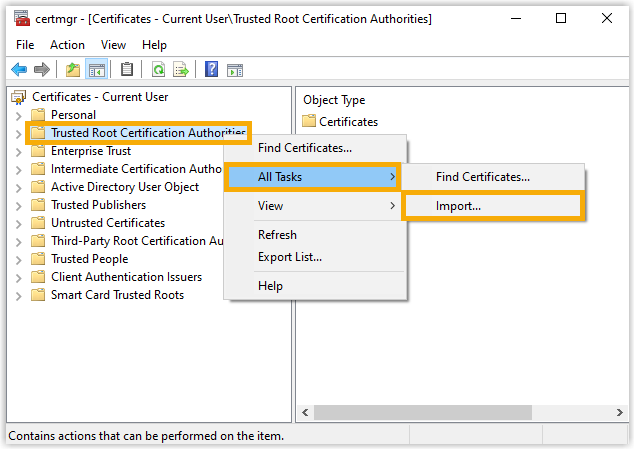
Right-click Trusted Root Certification Authorities, then choose All Tasks > Import.
-
Complete the import wizard and click OK.
-
-
Open Power BI Desktop.
-
Click Open and select the MySQL template file.
-
Repoint the template at your database and supply credentials:
-
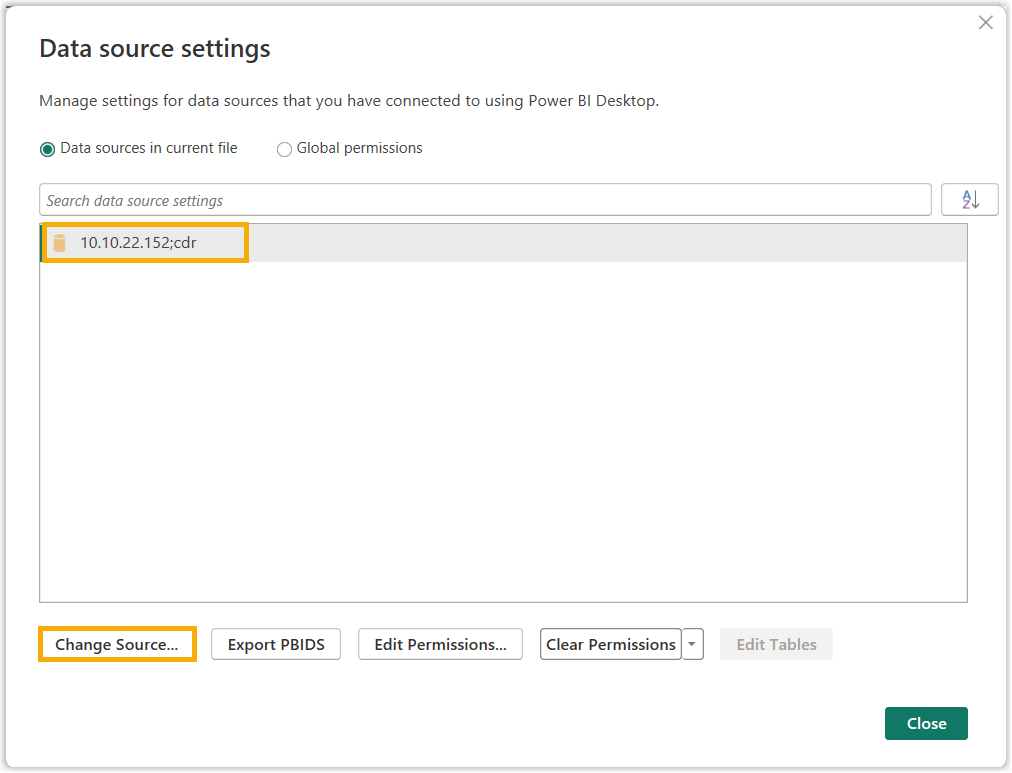
On the toolbar, click Transform data and choose Data source settings.
-
Update the source:
-
Select the default data source and click Change Source.
-
Enter the connection details below and click OK.
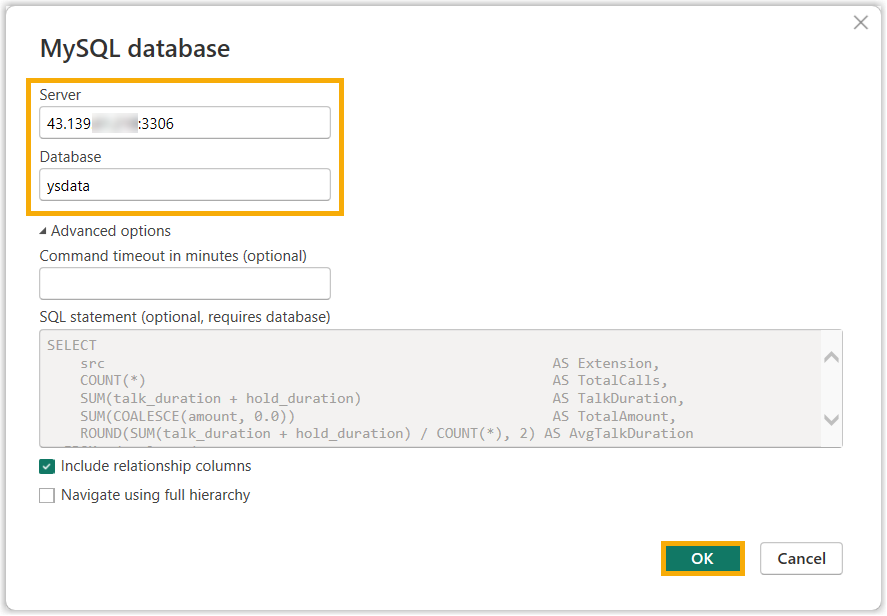
Field What to enter Server The IP address or domain name of the host running the database, along with the database port. Database The name of the database.
-
-
Set the access credentials:
-
Click Edit Permissions.
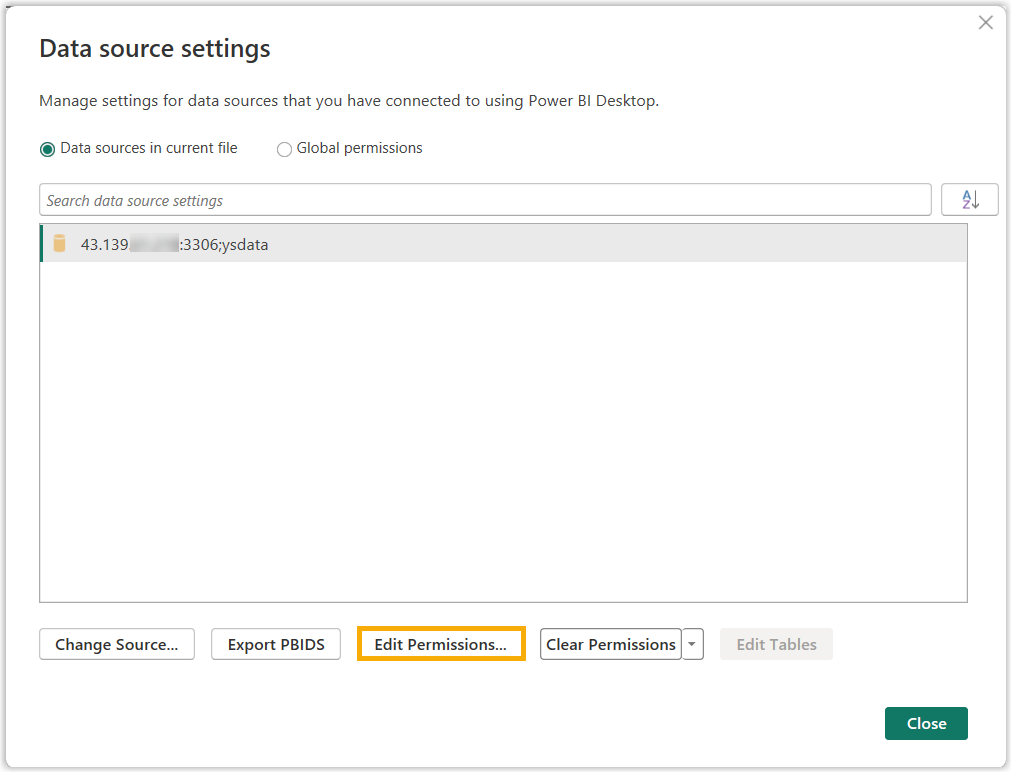
-
In the dialog, click Edit.
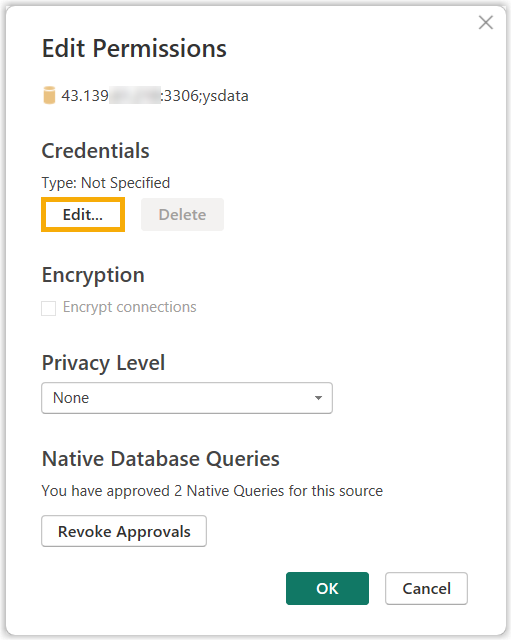
-
Select Database, enter the credentials below, and click Connect.
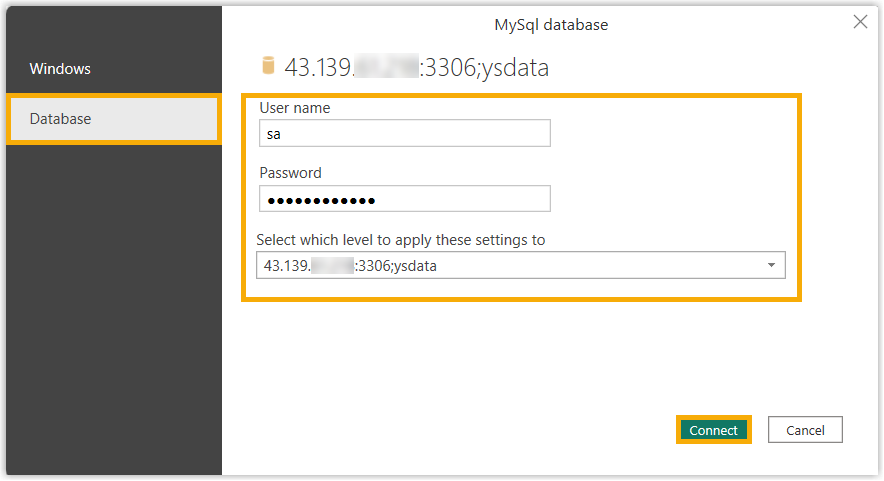
Field What to enter User name The account used to connect to the database. Password The password for that account. Select which level to apply these settings to The database the account is allowed to access.
-
-
Save your changes.
-
-
Click Refresh to run every SQL query in the template.
Your phone system data loads and appears on the report pages.
Import data from Microsoft SQL Server
Section titled “Import data from Microsoft SQL Server”Before you begin
Section titled “Before you begin”- Download and extract the Cloud Voice Power BI template package and select the Microsoft SQL template.
- Install Power BI Desktop.
- If your Microsoft SQL server uses SSL, install its certificate first:
- Download the SSL public certificate.
- Add it to the Trusted Root Certification Authorities store:
-
Run
certmgr.mscto open Certificate Manager. -
Right-click Trusted Root Certification Authorities, then choose All Tasks > Import.
-
Complete the import wizard and click OK.
-
-
Open Power BI Desktop.
-
Click Open and select the Microsoft SQL template file.
-
Repoint the template at your database and supply credentials:
-
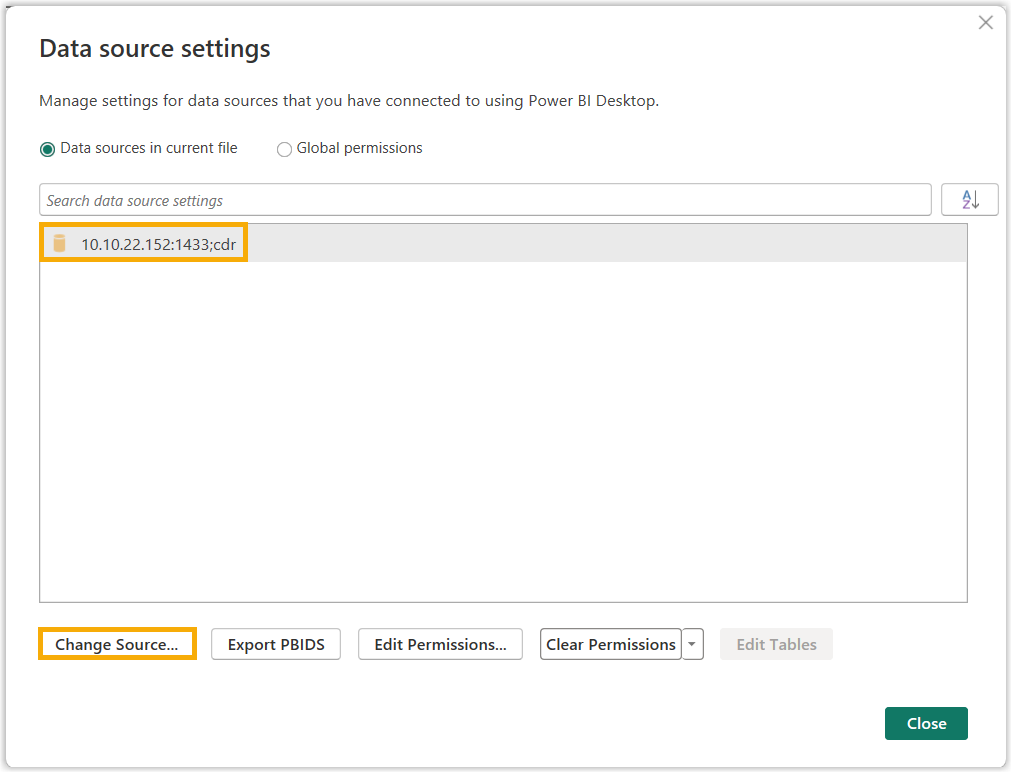
On the toolbar, click Transform data and choose Data source settings.
-
Update the source:
-
Select the default data source and click Change Source.
-
Enter the connection details below and click OK.
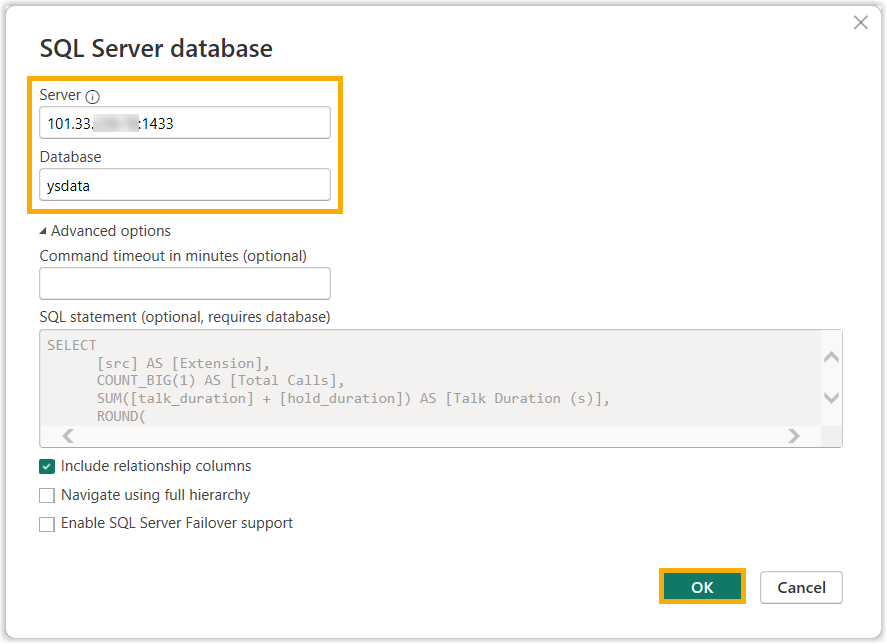
Field What to enter Server The IP address or domain name of the host running the database, along with the database port. Database The name of the database.
-
-
Set the access credentials:
-
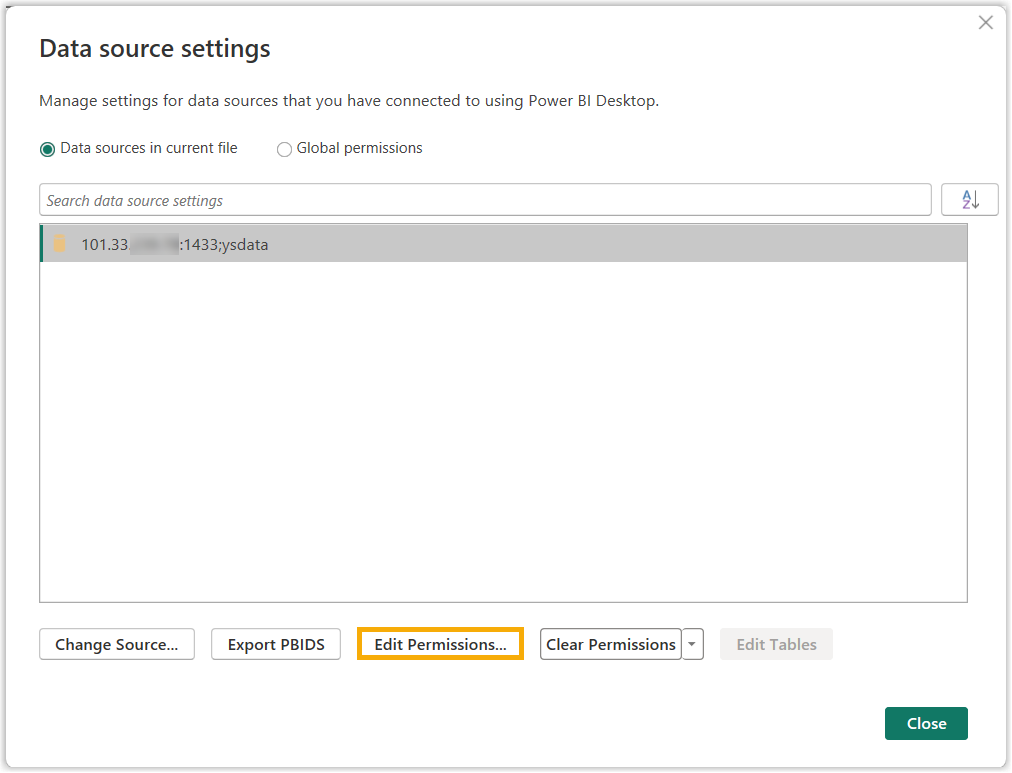
Click Edit Permissions.
-
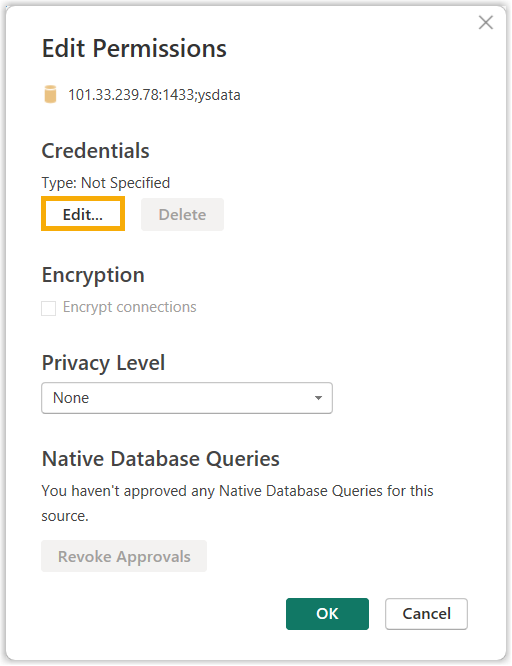
In the dialog, click Edit.
-
Select Database, enter the credentials below, and click Save.
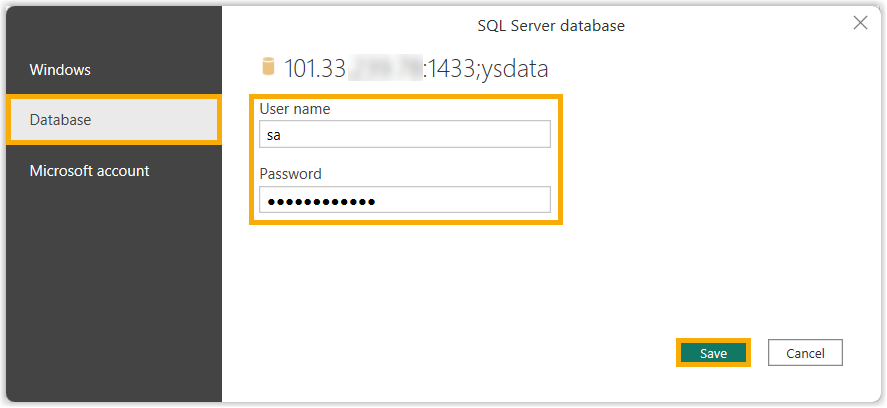
Field What to enter User name The account used to connect to the database. Password The password for that account.
-
-
Save your changes.
-
-
Click Refresh to run every SQL query in the template.
Your phone system data loads and appears on the report pages.
Customize the reports
Section titled “Customize the reports”You can add or edit SQL queries to control which data the template displays.
To surface other call reports, add the SQL queries you need. For the underlying data logic, see Call Report Calculations with Multiple SQL Queries.
Question about this page?
Ask the AI assistant. It starts from this page, then searches the rest of the docs.
Ask Cloud Voice AI
Answers are AI-generated from the docs and may contain mistakes. Verify with the linked pages.