
Text to Speech
The Text To Speech page turns written text into spoken audio prompts, greetings, menus, hold messages, and announcements, with no recording equipment or voice talent needed. Type the words, pick a voice, and the generated prompt is ready to use in your phone system.
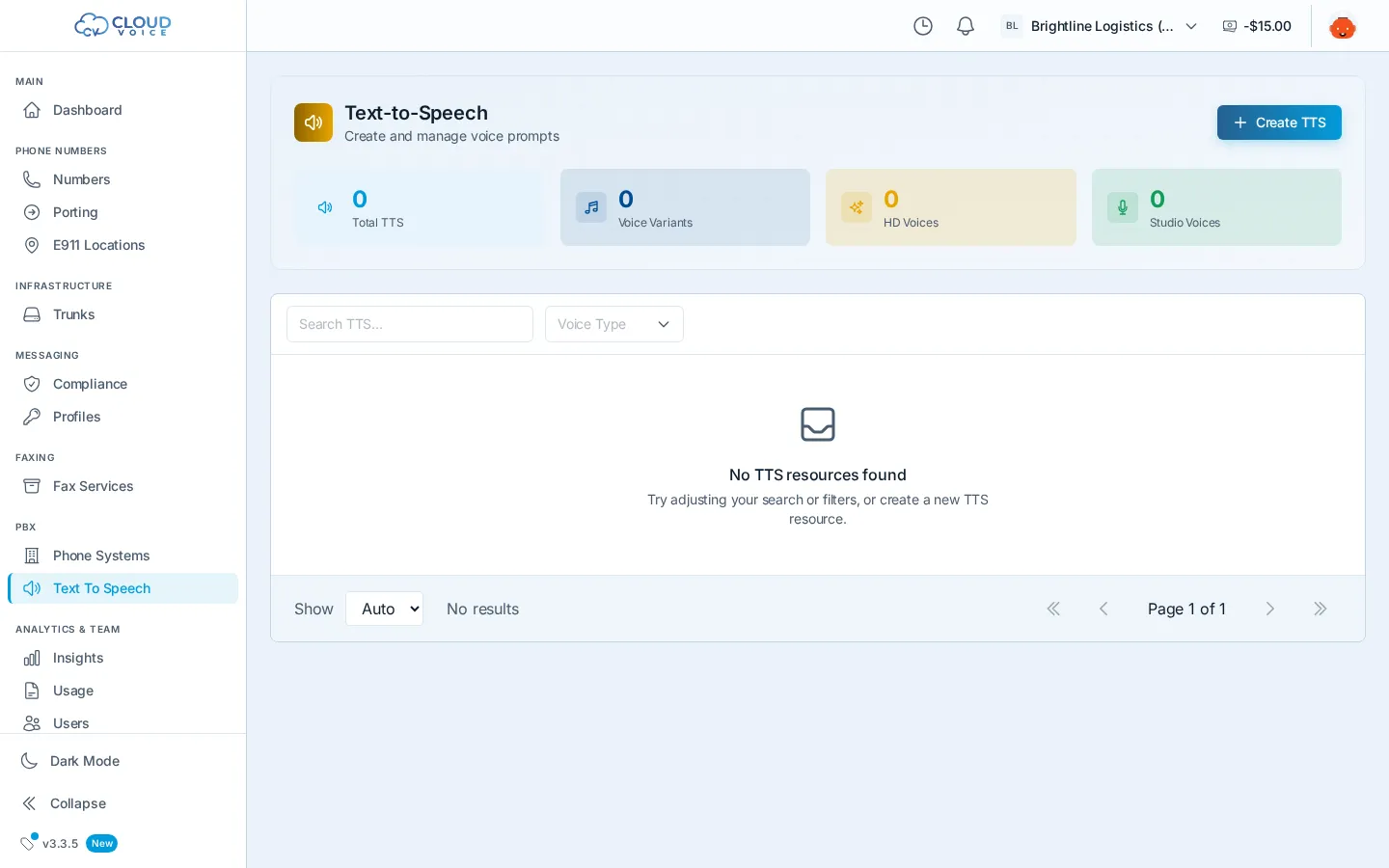
Create a prompt
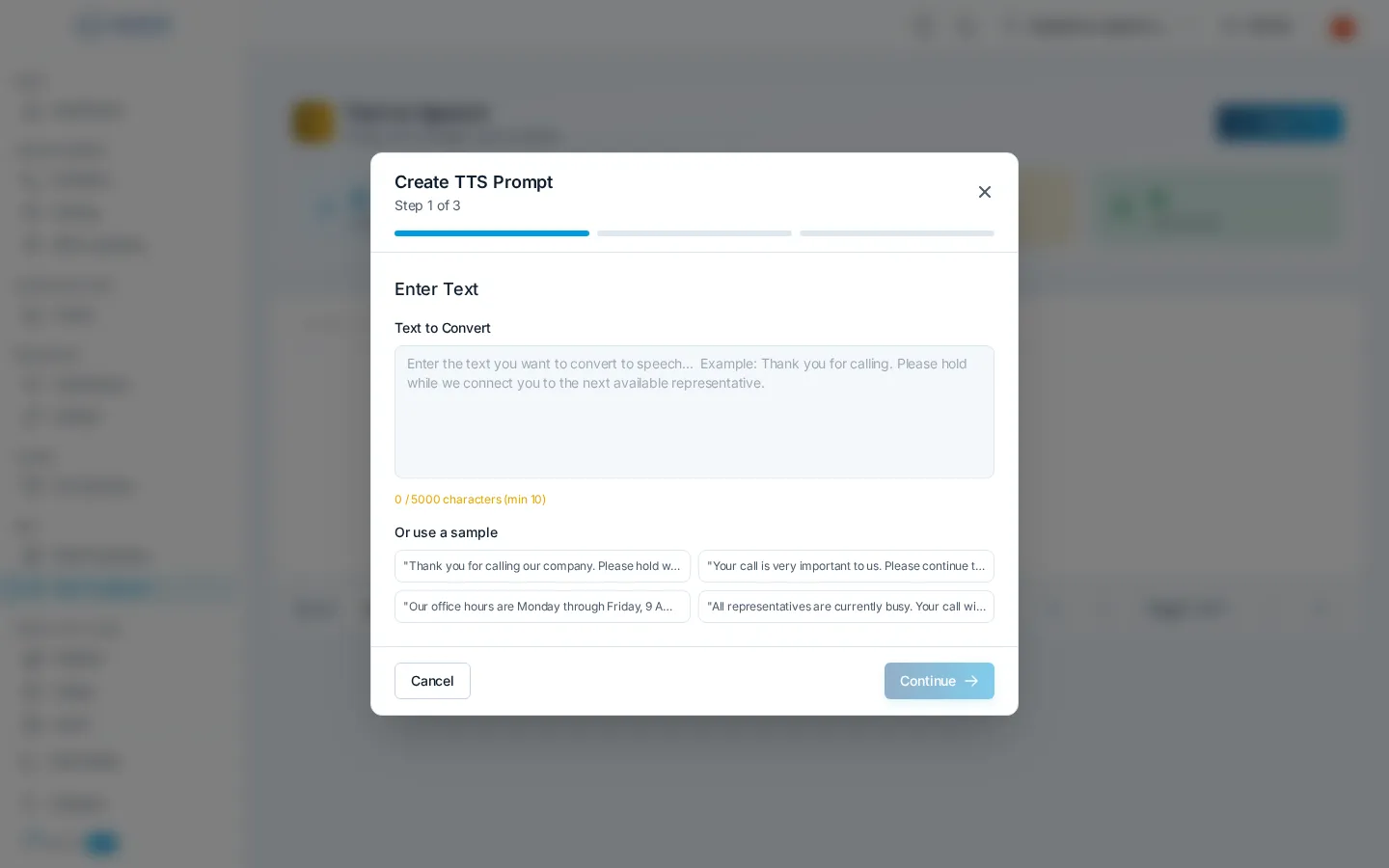
Section titled “Create a prompt”- On the Text To Speech page, click Create TTS.
- Script: type the words you want spoken (a greeting, menu options, a hold message, and so on).
- Voice: pick a voice and preview how it sounds with sample audio.
- Review & create: check the text and voice, then click Create TTS to generate the prompt.
The finished prompt appears in your list with its name, voice, and status.
Choose a voice
Section titled “Choose a voice”Voices come in two quality tiers, shown as a badge on each prompt:
- HD: high-definition natural voices
- Studio: premium studio-grade voices
Preview any voice before committing so the tone matches your brand.
Manage your prompts
Section titled “Manage your prompts”Click a prompt to open its detail panel, where you can:
- Play the generated audio right in the browser
- Edit the prompt and regenerate it
- Delete prompts you no longer use (with confirmation)
Search by name or filter the list by voice type to find prompts quickly.
Where prompts are used
Section titled “Where prompts are used”Use your generated prompts in the PBX, auto-attendant greetings, queue announcements, and other call-flow audio. Set up a system on the Phone Systems page, and see the PBX documentation for configuring call flows that play your prompts.
Question about this page?
Ask the AI assistant. It starts from this page, then searches the rest of the docs.
Ask Cloud Voice AI
Answers are AI-generated from the docs and may contain mistakes. Verify with the linked pages.