
Phone Systems (PBX)
The Phone Systems page is where you provision and manage hosted PBX instances, full business phone systems with extensions, voicemail, auto-attendants, and call routing. You can run a fully hosted UCaaS system or bring your own configuration (BYOC), and manage everything from the same list.
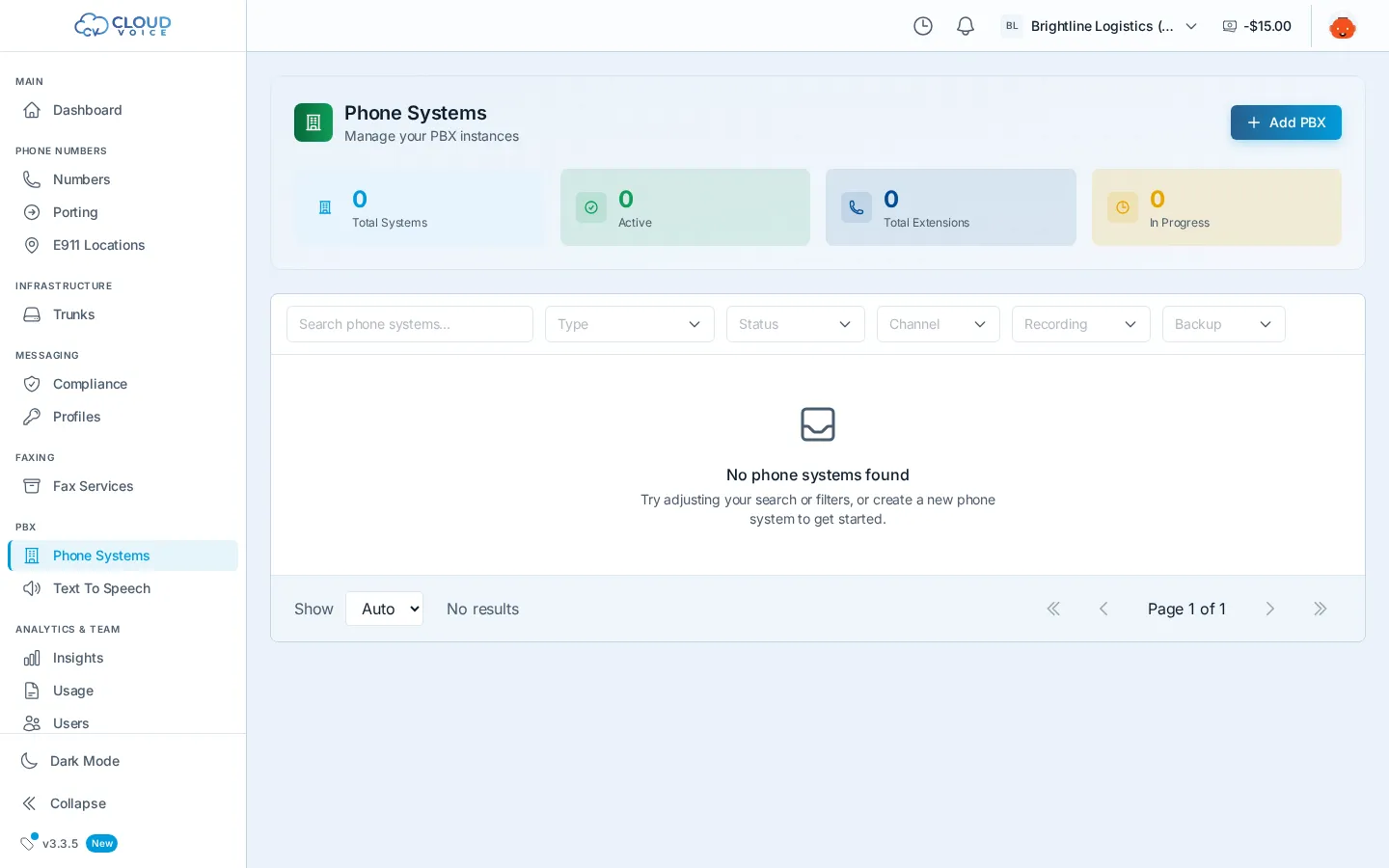
Add a phone system
Section titled “Add a phone system”- On the Phone Systems page, click Add PBX to start the wizard.
- Choose a type: select the PBX type that matches your deployment (UCaaS or BYOC).
- Details: name the system and set its core options.
- Configuration: set the remaining options. (BYOC deployments add a support-package step.)
- Confirm & create: review your choices and create the PBX.
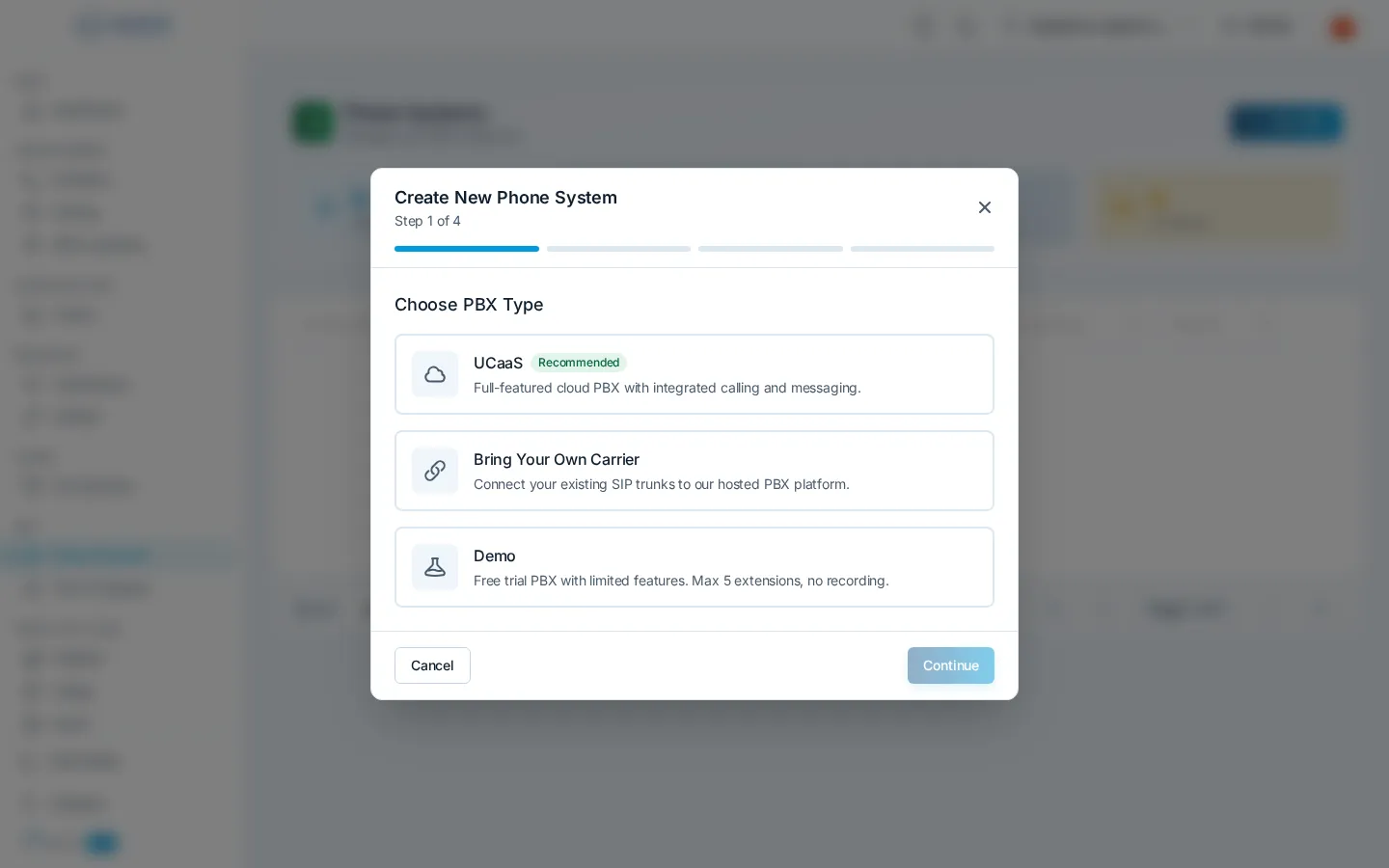
The new system appears in the list and begins provisioning automatically.
Provisioning statuses
Section titled “Provisioning statuses”A PBX moves through several states on its way to being ready:
- Setting Up → Configuring → Activating → Active
- An Active system can be stopped, which makes it Inactive until you start it again.
The page header shows total, active, and pending counts so you can see where everything stands at a glance.
Manage your PBX
Section titled “Manage your PBX”Click a phone system to open its detail panel:
- Extensions: view and manage the system’s extensions; their live registration state also appears on the dashboard home.
- Backups: see when the system was last backed up and manage backups.
- Logs: review system logs when troubleshooting.
- Health, call recording, and update-channel settings are visible per system, and you can filter the list by any of them.
To carry calls, connect the PBX to a SIP trunk, see Create a Trunk, and point your numbers at it from the Numbers page. Audio prompts for auto-attendants and queues can be generated with Text to Speech.
Day-to-day PBX administration
Section titled “Day-to-day PBX administration”Provisioning and lifecycle live in this dashboard; the day-to-day configuration of extensions, call flows, and features happens in the PBX management interface. The full PBX manuals, administrator guide, call flow designer, operator panel, and more, live in the PBX documentation section; see the available guides.
Question about this page?
Ask the AI assistant. It starts from this page, then searches the rest of the docs.
Ask Cloud Voice AI
Answers are AI-generated from the docs and may contain mistakes. Verify with the linked pages.