
Number Porting
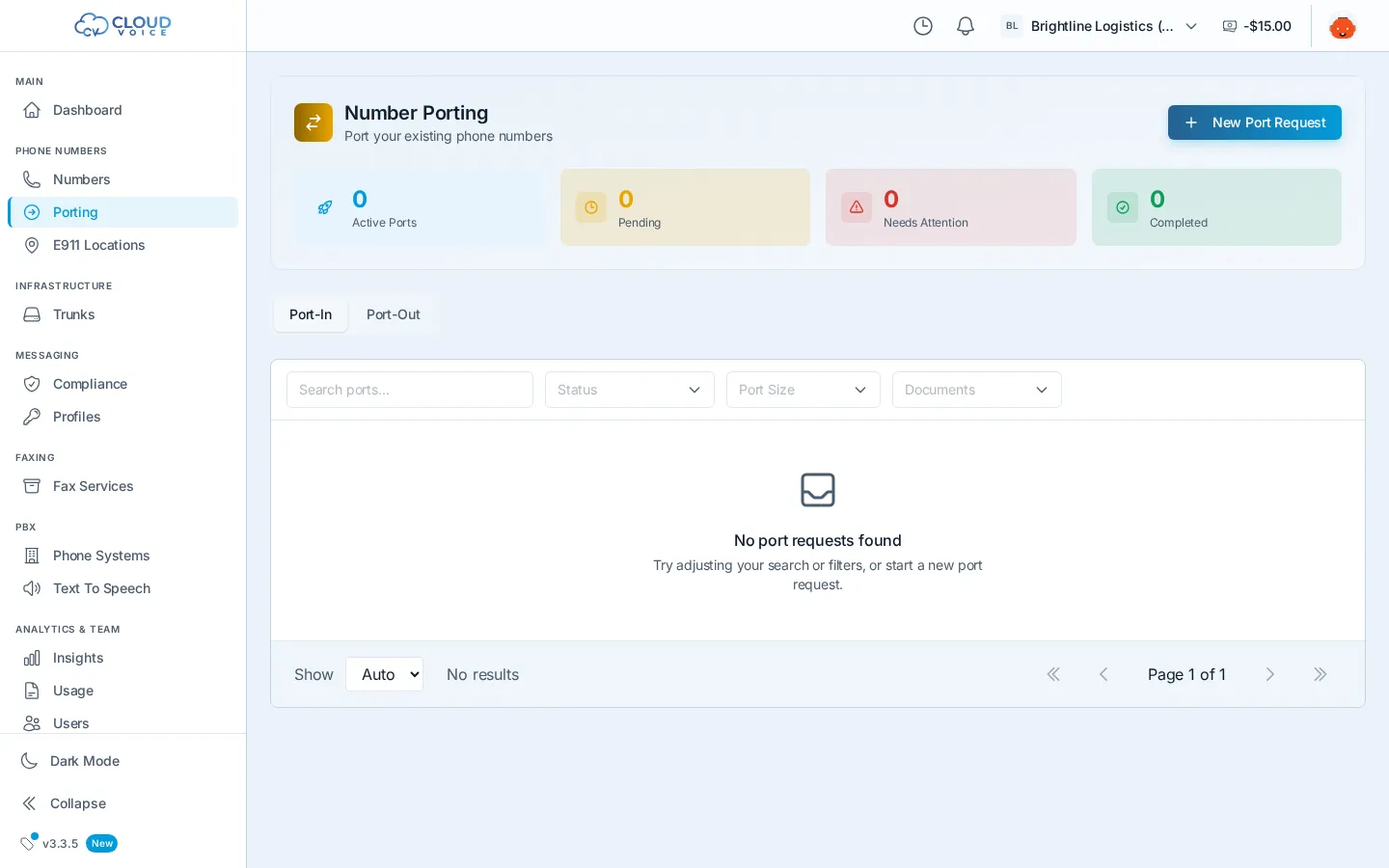
Porting lets you keep your existing phone numbers when you move to Cloud Voice. The Porting page is where you submit port-in requests, upload the required documents, and track each request through to completion, with notifications at every milestone.
Before you start
Section titled “Before you start”Have these on hand from your current carrier:
- A recent bill or invoice
- Your account number
- Your account PIN or passcode
Submit a port-in order
Section titled “Submit a port-in order”- On the Porting page, open the Port-In tab and click New Port Request.
- Numbers: enter the phone number(s) you want to transfer.
- Portability check: we verify the numbers can be ported before you go any further.
- Account details: enter your account info exactly as it appears with your current carrier.
- Review & submit: check everything, then click Submit Port Request.
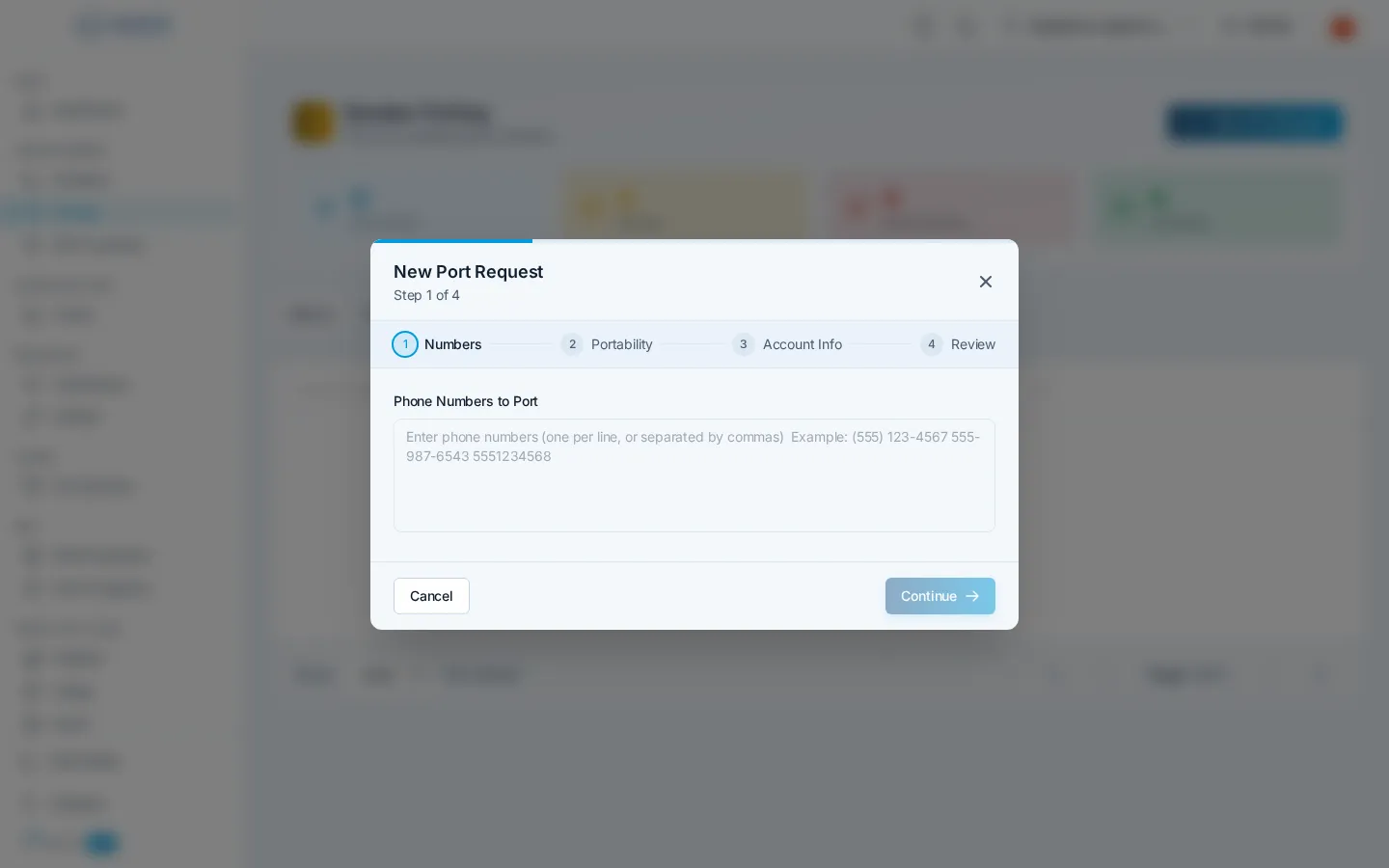
After submitting, you’ll upload your latest bill and sign the Letter of Authorization (LOA) from the port’s detail panel. The request can’t move forward until both documents are in.
Track your port
Section titled “Track your port”Each port request shows a status pipeline, a timeline of activity, the numbers being ported, and its documents. Statuses you’ll see include:
| Status | Meaning |
|---|---|
| Pending Documents / Pending LOA / Pending Invoice | We’re waiting on your bill and/or signed LOA |
| Ready to Submit | Documents are complete; the request is ready to go to the losing carrier |
| Pending Approval | Submitted and awaiting the carrier’s confirmation |
| FOC | The carrier confirmed a Firm Order Commitment (transfer) date |
| Scheduled | The transfer date is set and approaching |
| Complete | The numbers are live on Cloud Voice |
| Exception | The carrier flagged a problem, fix the details and resubmit |
| Canceled | The request was withdrawn |
You’ll be notified at each milestone, including the FOC date. If a request hits an Exception, open it, correct the flagged details, and resubmit. You can cancel a port at any point before it completes.
Porting a number out
Section titled “Porting a number out”When another carrier requests to move numbers away from your account, those requests appear on the Port-Out tab of the Porting page.
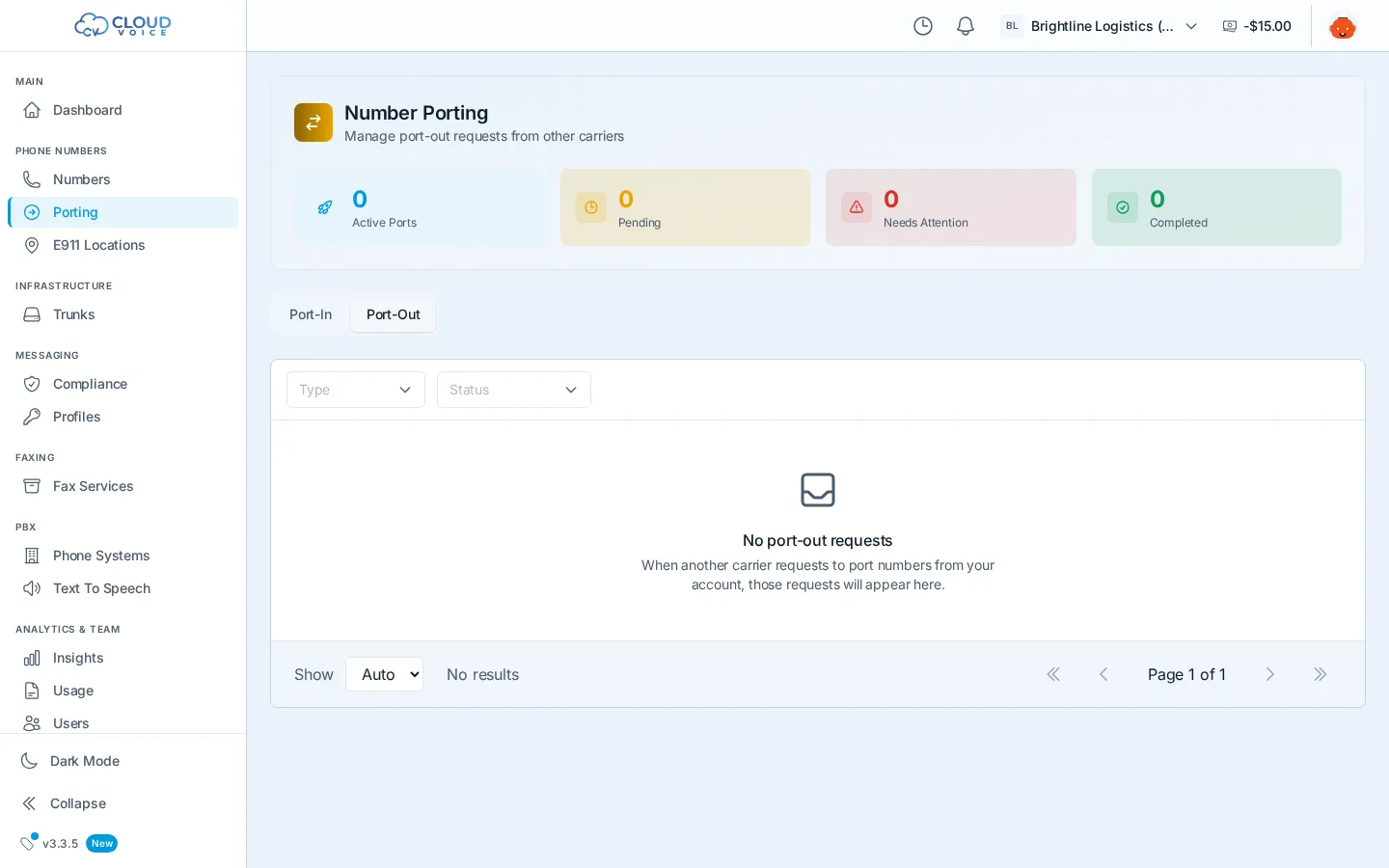
Detailed steps coming soon.
Question about this page?
Ask the AI assistant. It starts from this page, then searches the rest of the docs.
Ask Cloud Voice AI
Answers are AI-generated from the docs and may contain mistakes. Verify with the linked pages.