Manage Your Status in Queues
As an agent of a queue or multiple queues, you can change your own status in a specific queue or in all queues on IZT Cloud Voice Web Client. This topic describes how to log in to and out of queues, pause, and unpause queue calls.
Note
This operation is only available for dynamic agents.
Log in to Queues
Log in to all queues
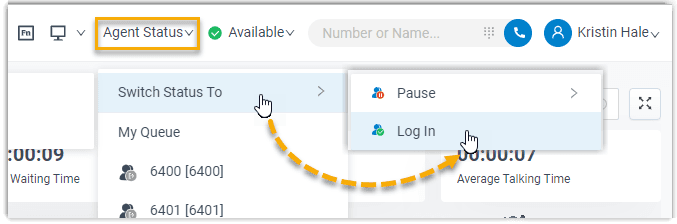
- In the top navigation bar of IZT Cloud Voice Web Client, click Agent Status.
- Hover your mouse over Switch Status To.
- Click Log In.
Log in to a specific queue from Queue Panel
- In the IZT Cloud Voice Web Client, go to Call Center Console > Queue Panel.
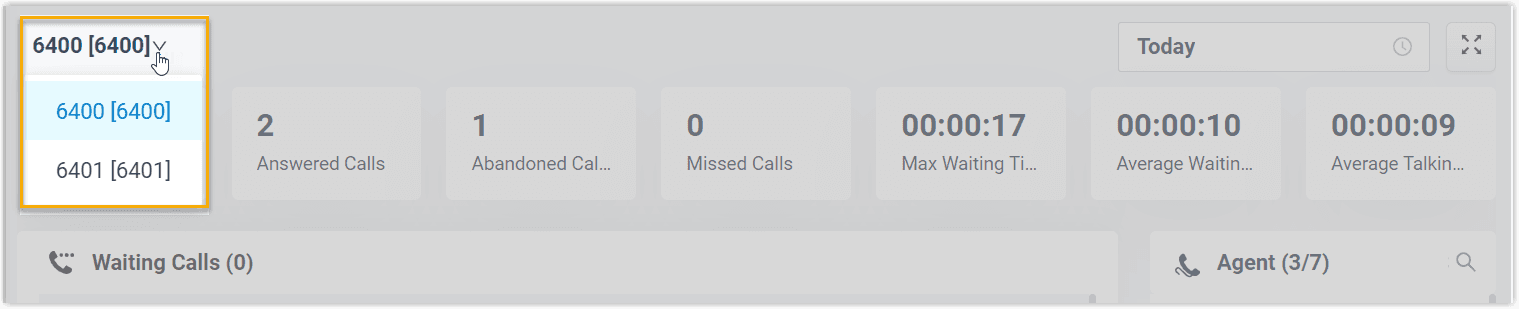
- In the top-left corner of the Queue Panel, select a desired queue.
- On the Agent panel, hover your mouse over your extension and change the status.
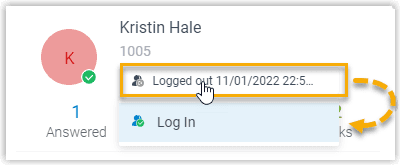
- Click the agent status.
- Click Log In.
Log in to a specific queue using feature code
After you obtain the log in/log out feature code from the system administrator, you can log in to a specific queue using the feature code. For example, if the feature code is *7, to log in to queue 6400, simply dial *76400.