Queue Panel Layout
This topic describes the Queue Panel layout, including call statistics panel, waiting call panel, active call panel, and agent panel.
Menu bar
- If you have multiple queues, select a desired queue from the upper left corner of the queue panel.
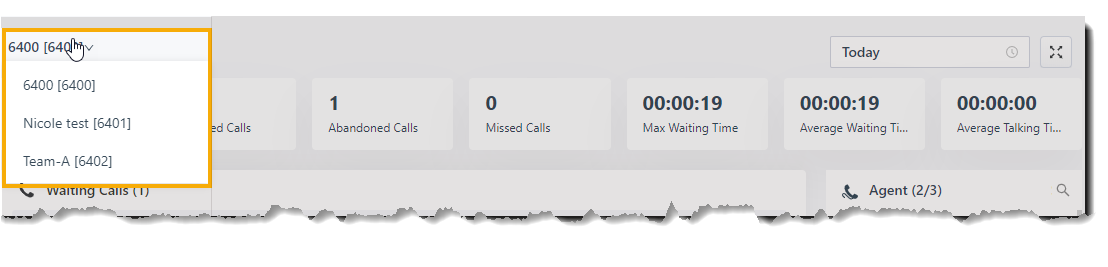
- Select a time range.
- Today: View statistics of today.
- This Week: View statistics of this week.
- This Month: View statistics of this month.

- Optional: Click
 to display the queue panel in a separate browser window.
For example, display the queue panel of Service in one browser window; display the queue panel of Sales in another browser window.
Call statistics panel
Displays call statistics of a queue.

Call statistics
| Call statistics | Description |
|---|---|
| SLA | Display the Service Level Agreement over a period of time for the queue. |
| Answered calls | Display the total calls that queue agents answered over a period of time. |
| Abandoned Calls | Display the total calls that have been abandoned over a period of time. You can click on the widget to view detailed information about related call logs and manage the processing status. |
| Missed Calls | Display the total calls that queue missed over a period of time. You can click on the widget to view detailed information about related call logs and manage the processing status. |
| Max Waiting Time | Display the maximum call waiting time for all calls answered over a period of time. |
| Avg Waiting Time | Display the average waiting time over a period of time for all queue calls. |
| Avg Talking Time | Display the average talking time over a period of time for all queue calls. |
Waiting call panel
Displays details of incoming calls that are in ringing or waiting state in real time, including caller, callee, status, time, and details.
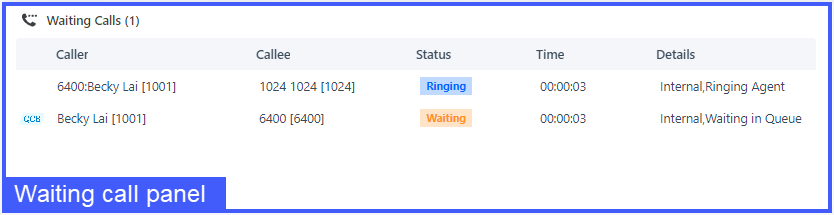
The text QCB indicates that the caller has requested a callback.
Active call panel
Displays details of answered calls in real-time, including caller, callee, status, time, and details.
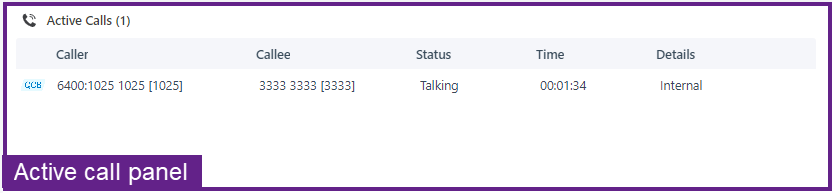
The text QCB indicates that this is a callback.
Agent panel
The agent panel displays agent details in the queue, including the agent's presence, queue status, and the agent's queue call statistics.
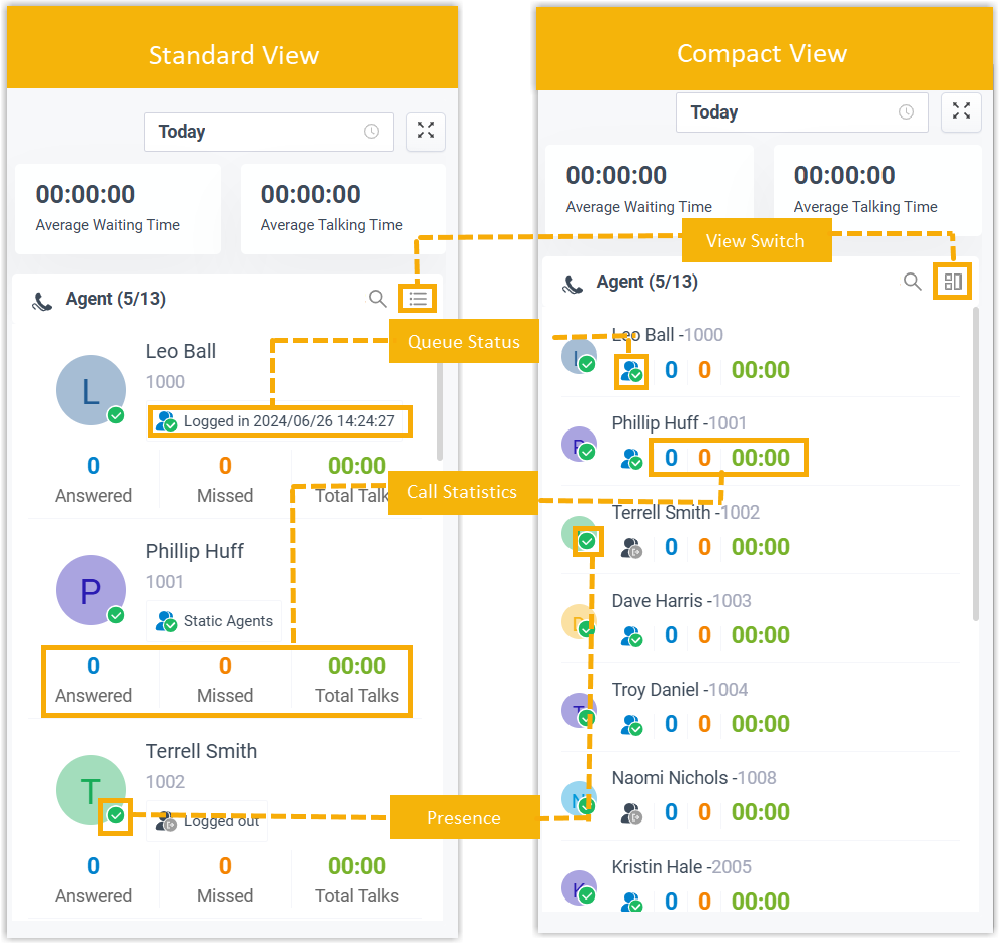
You can click the View Switch button to switch between Standard View and Compact View to check this information as needed.
Agent's presence
Hover your mouse over the presence icon to see the agent's presence status.
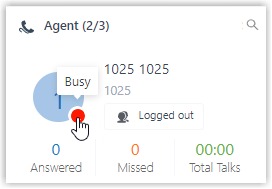
Icon Presence Matrix
| Icon | Presence | Description |
|---|---|---|
 | Unavailable | The agent's extension is not registered. |
 | Busy | The agent is in a call. |
 | Available | The agent is online and ready to receive and handle calls. |
 | Away | The agent is currently away from the office. |
 | Business Trip | The agent is currently on a business trip. |
 | Do Not Disturb | The agent doesn't want to be disturbed, and he/she won't receive any calls. |
 | Lunch Break | The agent is currently on lunch break. |
 | Off Work | The agent is currently off work. |
Queue Status
| Icon | Presence |
|---|---|
 | The agent has logged in to the queue and is available to receive a call. |
 | The agent has logged out of the queue. |
 | The agent has paused receiving the queue calls. |
View Switch
By default, Standard View is displayed. You can click the View Switch button to switch to the Compact View, which allows you to view and manage queue agents more efficiently.